How to Add and Manage FAQ Groups in Page Pilot | Step-by-Step Guide
User can add the FAQ group for by clicking on this tabs which will land user to new screen of add FAQ.
1. Click on + Add FAQ Group Tab on manage FAQ group Screen. New pop up with FAQ Group Setting will open.
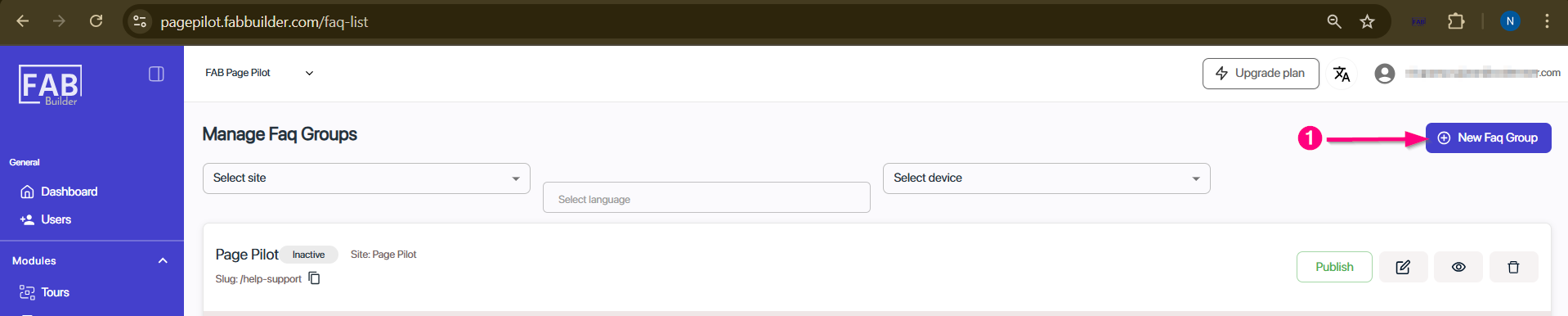
Screen- Add FAQ Group
2. Fill all details such as Title, Site, slug and click Save & Next button.
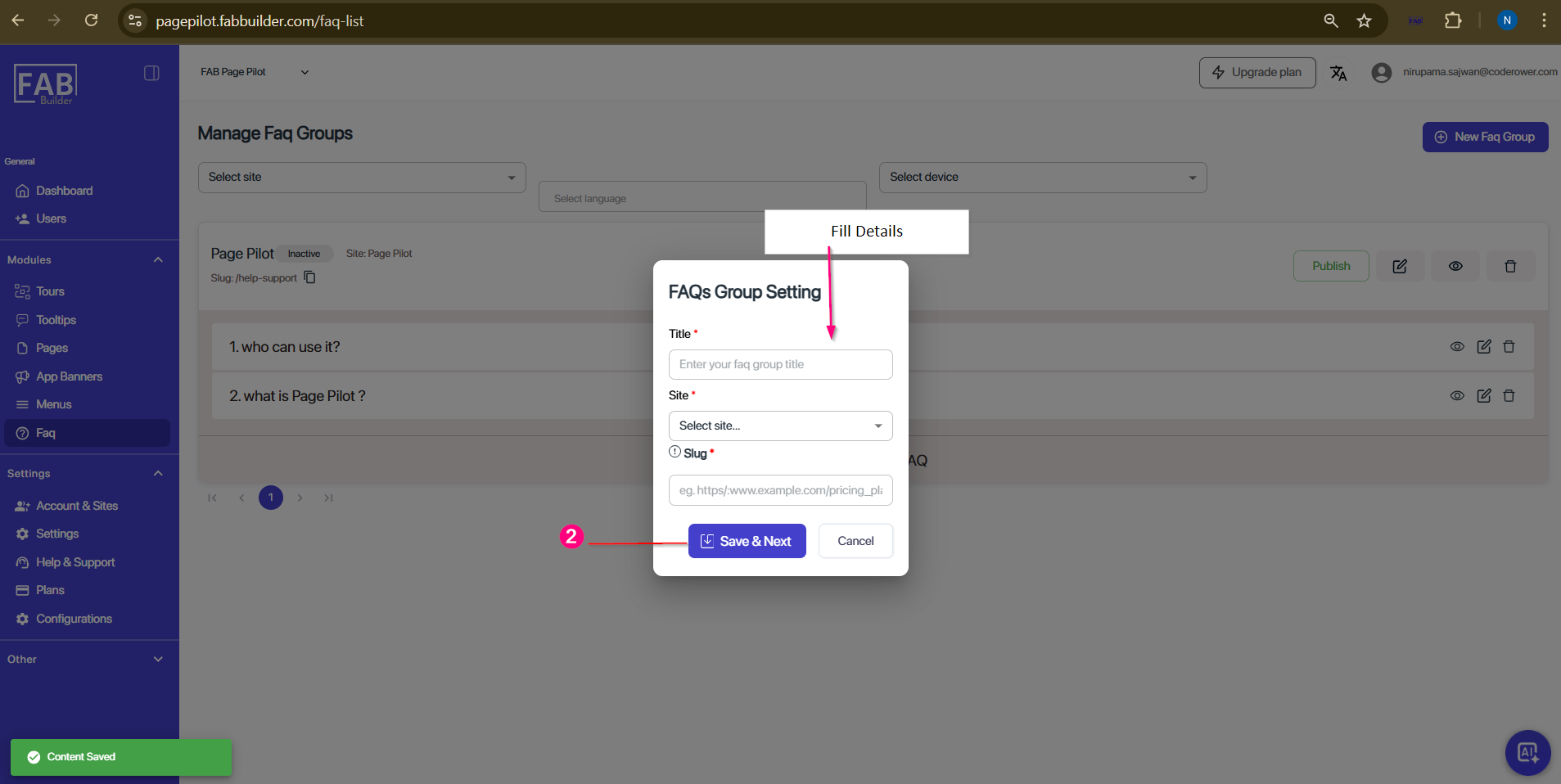
Screen – FAQ Group setting
3. Select the language from drop down menu. (Currently English is selected).
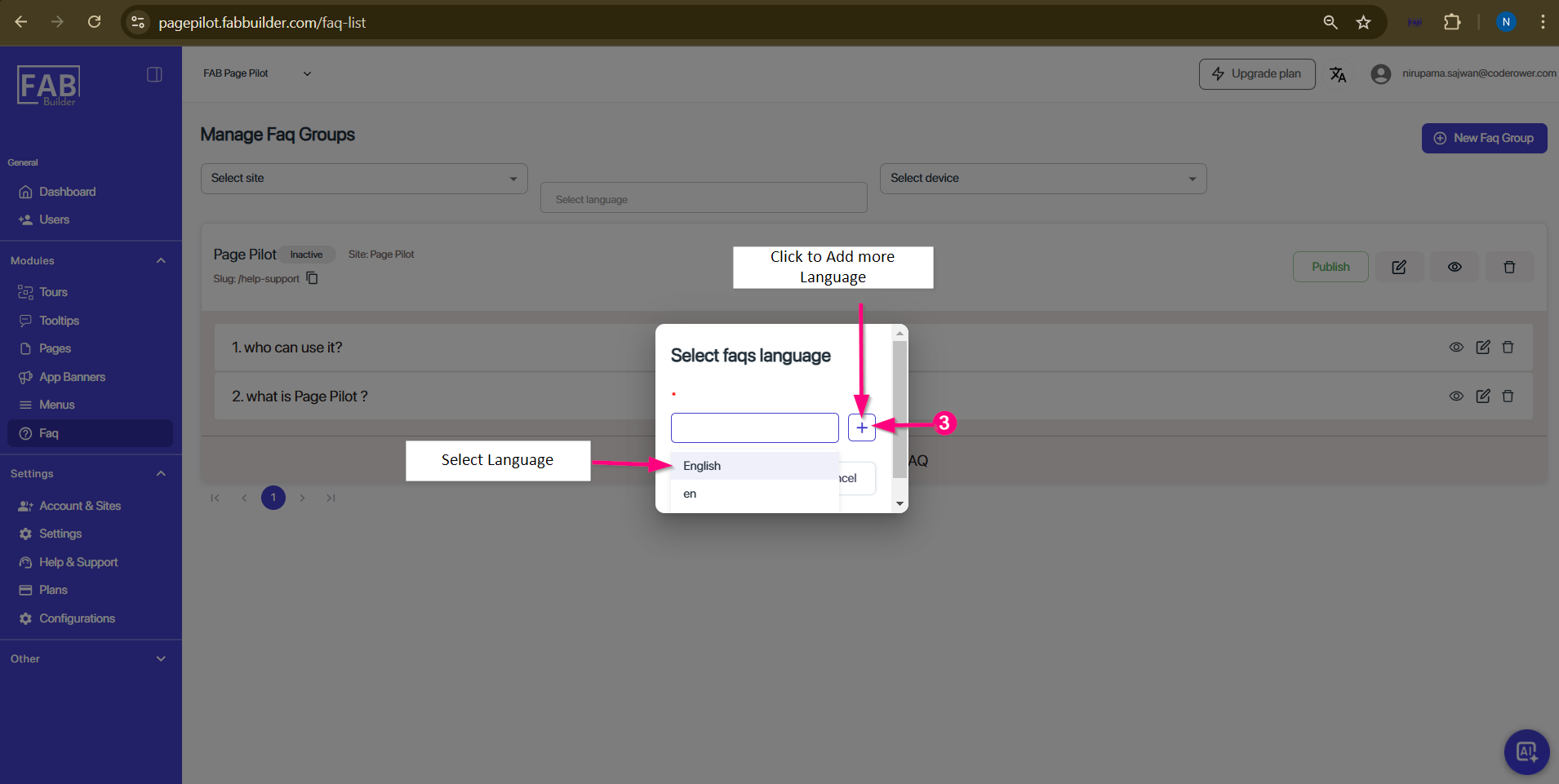
Screen- Language Selection
Next click will display language selection pop up screen. This screen also allows user to add new language by clicking + button.
4.click on "+" button to add new language which can be seen language drop down menu in previous step.(optional)
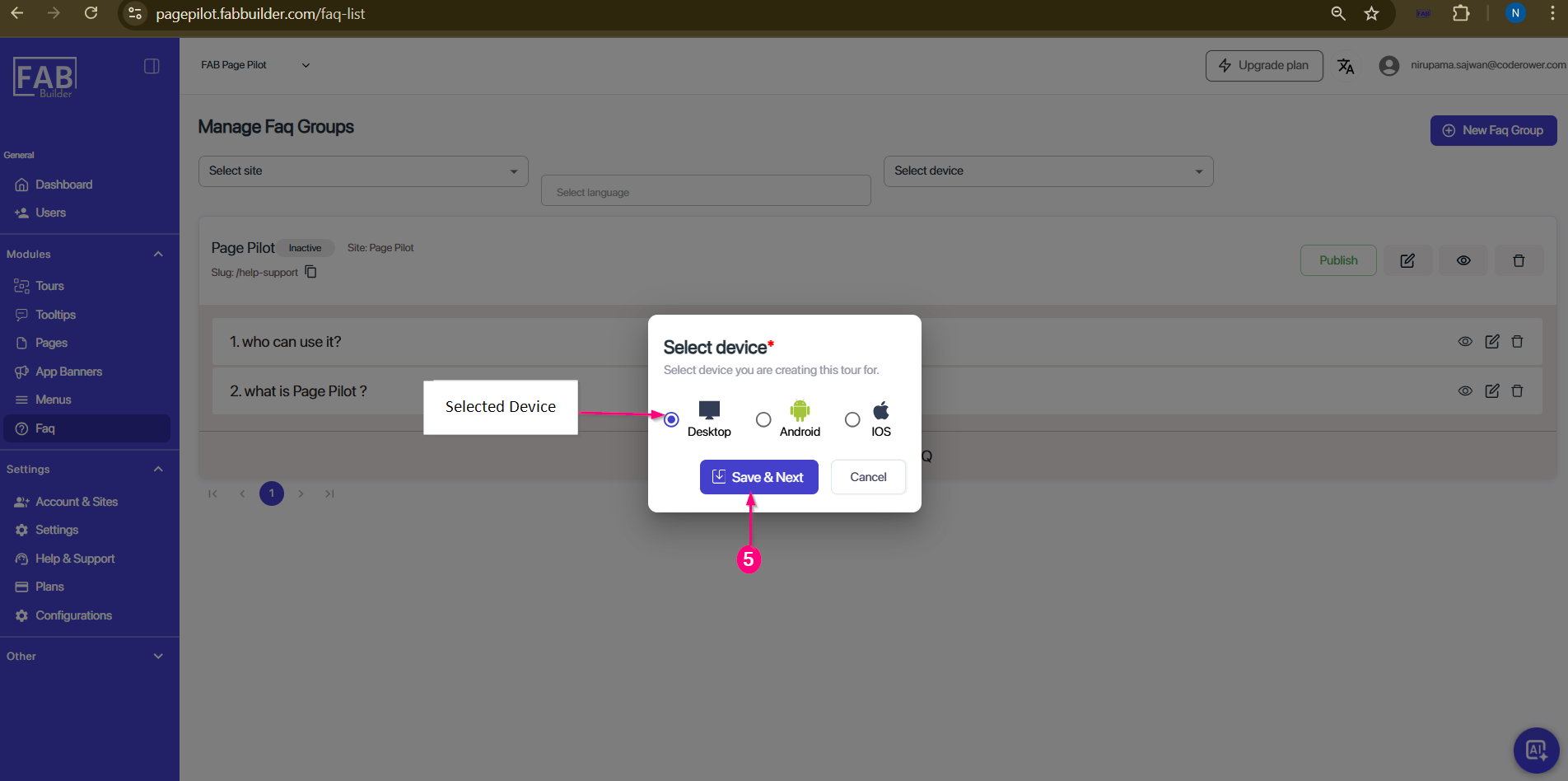
After selecting the language, next step to select Device selection pop up screen.
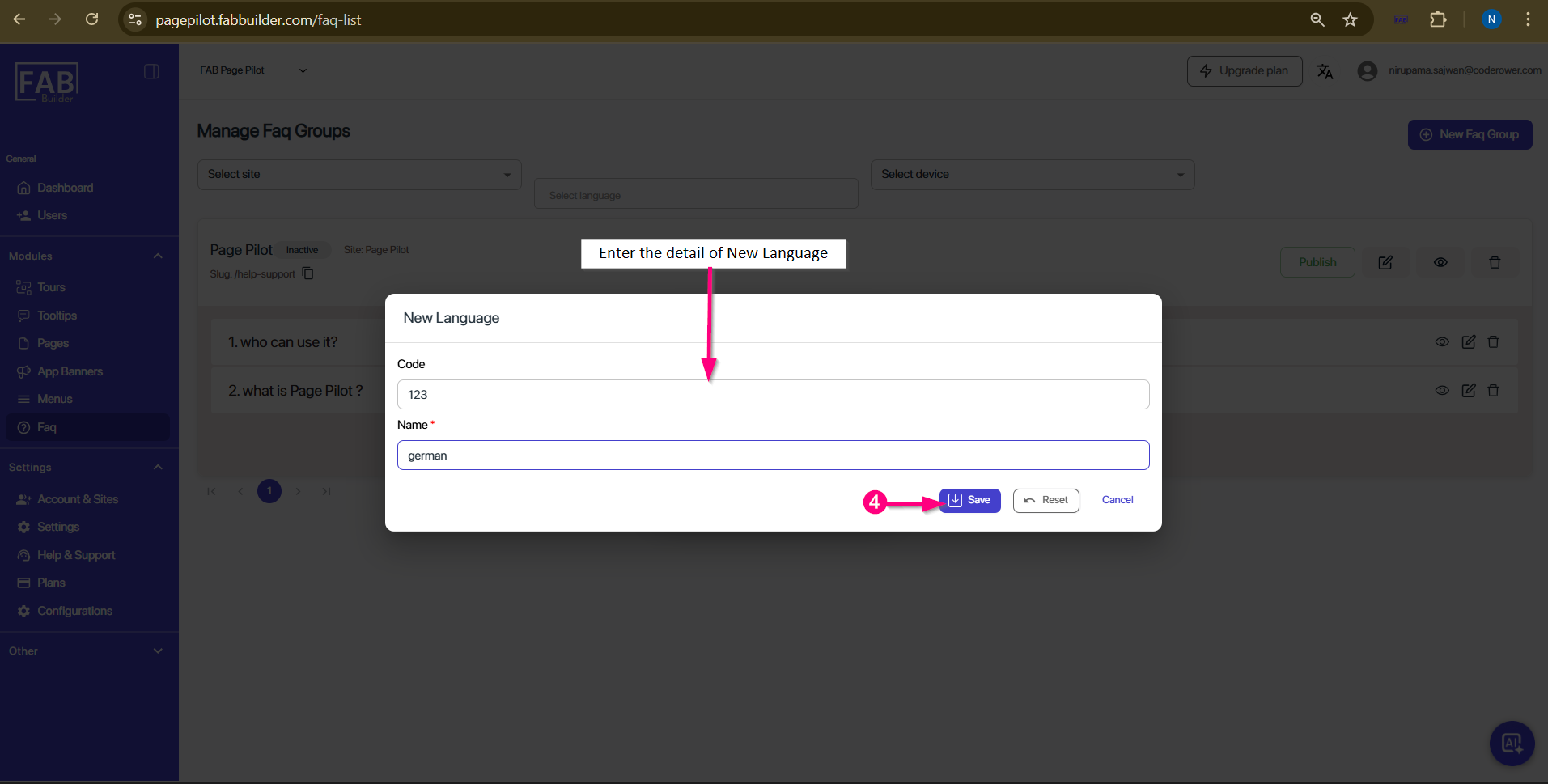
Screen- Add New Language
5. Select the device type from the available options. (Currently Desktop is selected) and click on save and Next button to proceed.
Screen- New FAQ Group Created
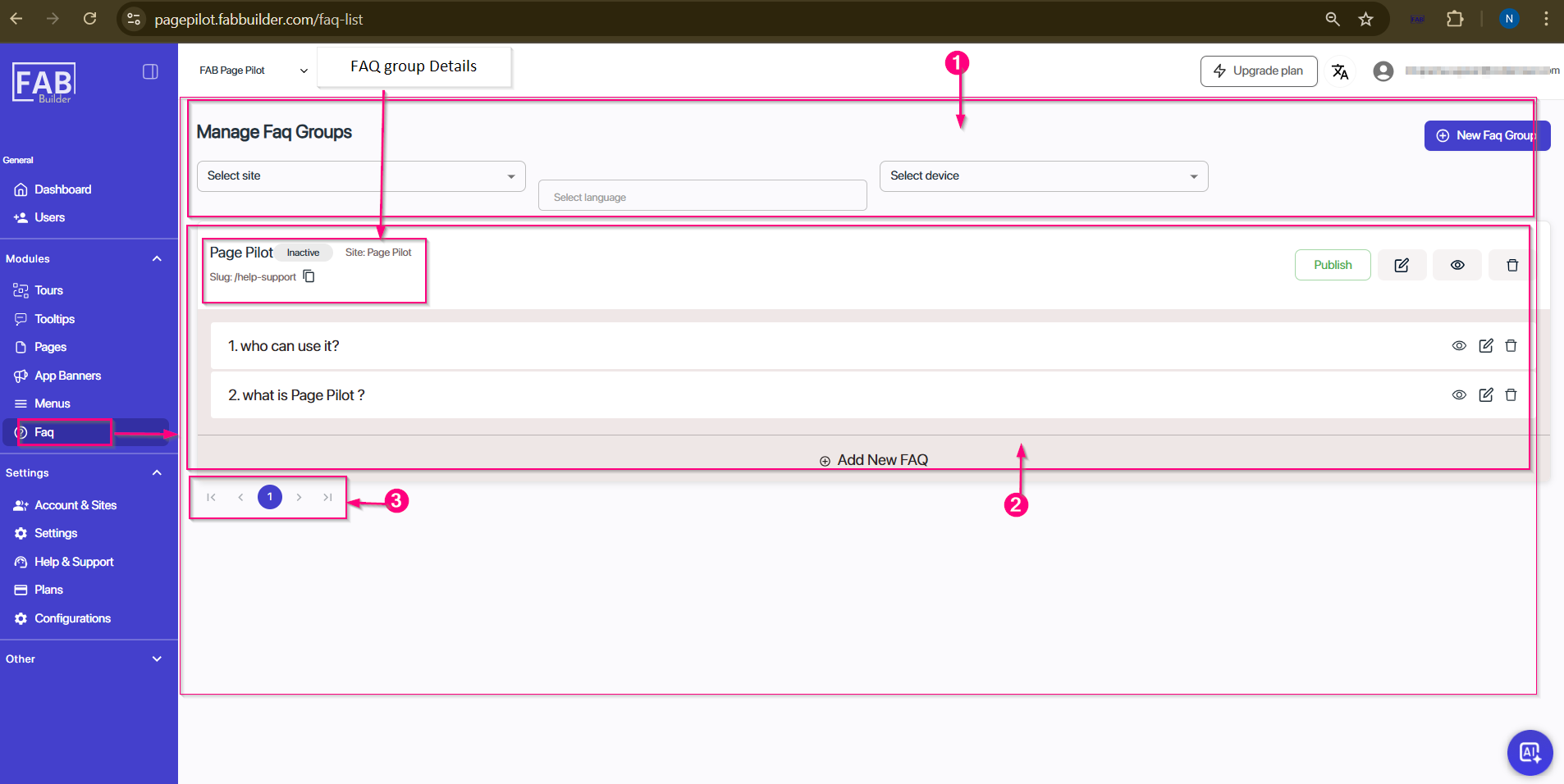
After the device selection step, the user will see a “FAQ Group Created successfully” message displayed in the footer of the same screen Manage FAQ Section.
Here, the details of the newly added FAQ Group are displayed along with additional options for filtering and managing FAQs.
This screen is divided into two main areas:
1. Filter Area-Contains three filters to narrow down the FAQ Groups:
- Select Site – filter by published sites.
- Select Language – filter by chosen language.
- Select Device – filter by device type.
On the top-right corner, the New FAQ Group button is available to create a new group.
2. FAQ Group Details Area- This area displays the list of created FAQ Groups. It allows the user to add a new FAQ inside the selected group by clicking + Add New FAQ. Each group provides options to:
- Publish the FAQ group to the site.
- Edit details of the group.
- View how the group will appear.
- Copy the group.
- Delete the group.
3. Pagination (Bottom Area)- user can navigate for switching between multiple FAQ groups (10/page shown).
Screen- New FAQ Group Created
User can add the FAQ group for by clicking on this tabs which will land user to new screen of add FAQ.
1. Click on + Add FAQ Group Tab on manage FAQ group Screen. New pop up with FAQ Group Setting will open.
2. Fill all details such as Title, Site, slug and click Save & Next button.