How to Add Banner Content in Page Pilot (Text, Images & Video)
Once the content is saved, user can view the added content on app banner.
In the New App Banner field details screen, clicking the button next to the Content field opens a screen that allows the user to add and customize banner content.
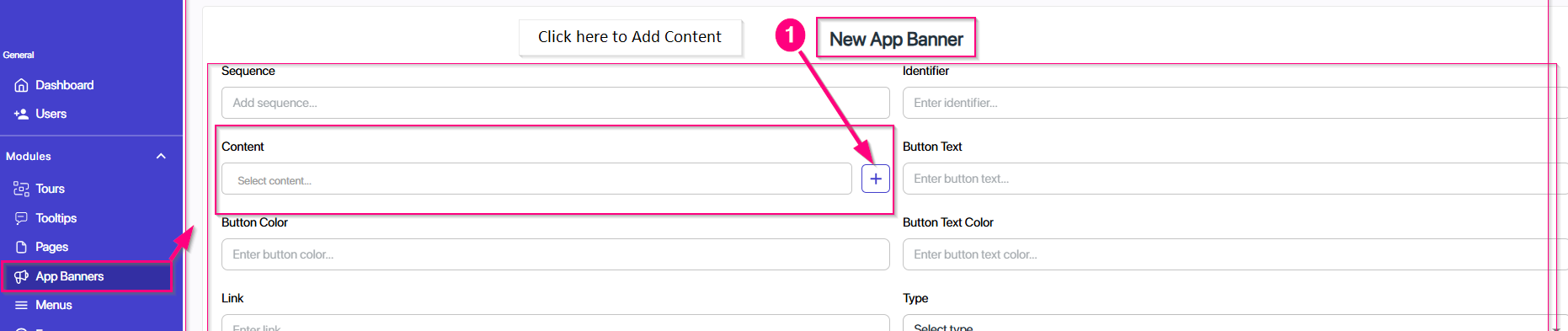
Screen-Add App Banner Content
Users can:
1. Click on plus button.
2. Enter the banner title in the provided text fields.
3. Add content details by Providing detailed information or description in text format.
4. Upload and include images
5. Upload videos to make the banner more engaging.
This feature enables users to create rich, visually appealing banners with both text and multimedia elements.
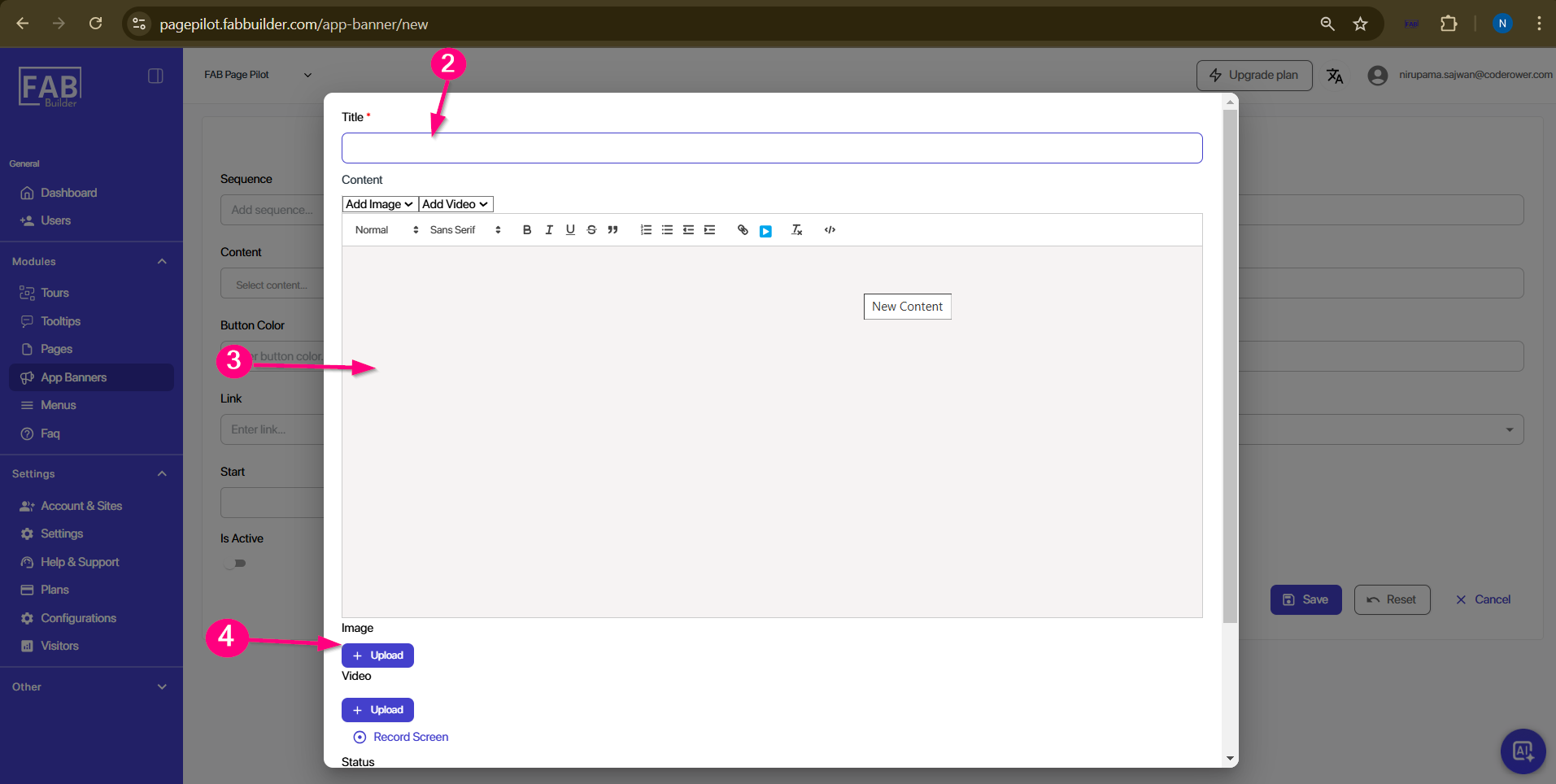
Screen- Add content for new Banner
When the user scrolls further down on the Add Content screen, additional fields are available:
- Status: Set the status of the banner (e.g., Active/Inactive).
- Language: Select the language in which the banner content will be displayed.
6. Fill the status and language details.
7. Click the Save button to complete the process of adding a new banner.
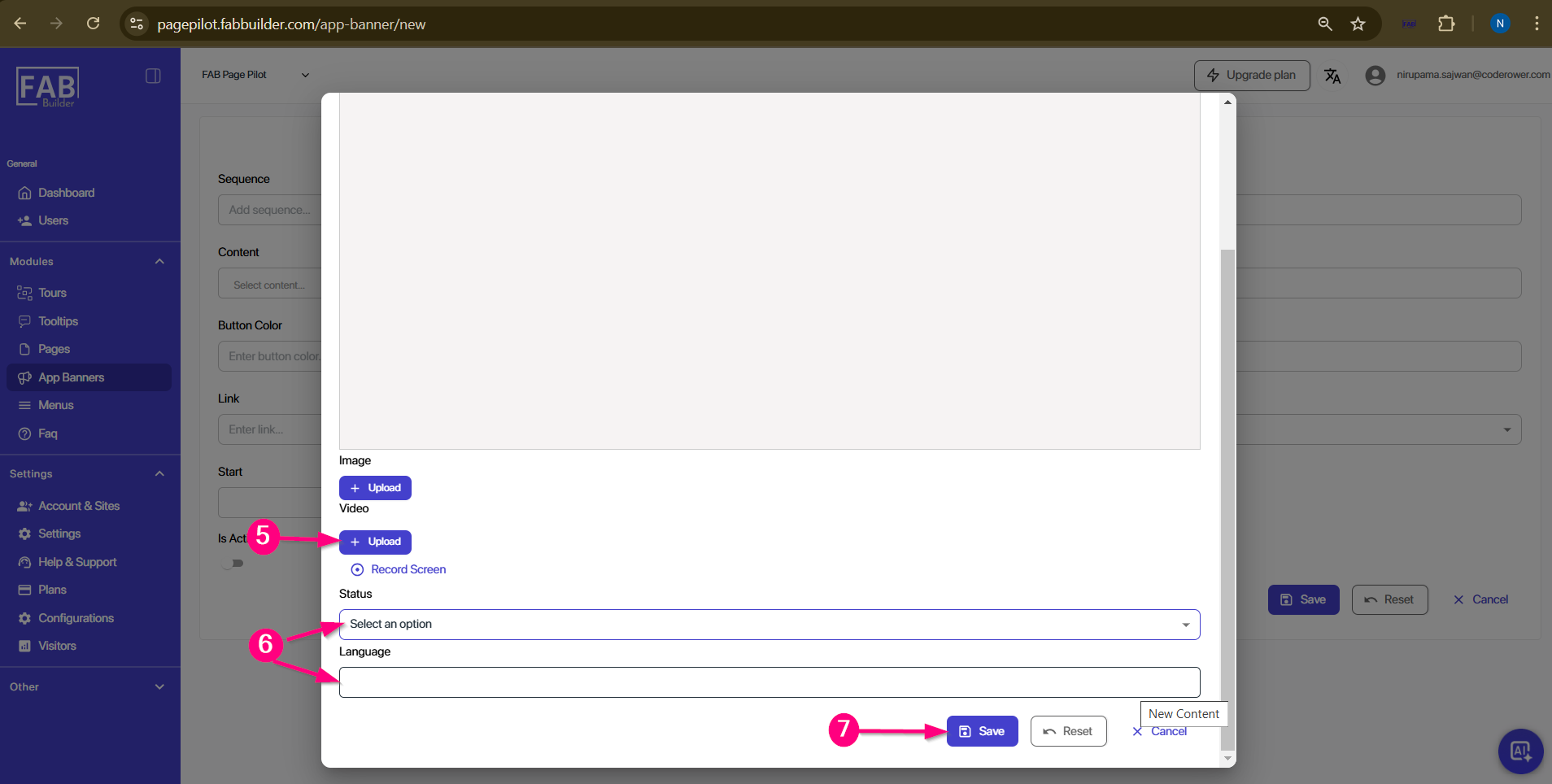
Screen-App Banner Added content
Audit Log Screen Details
Under the app banner, audit logs which displays the details of all the activity perform by user,
can be describe in two main area filter and audit log table.
a. Screen Title-At the top left corner this screen displays the screen title name Audit Log
b. Export to excel button- user can export all logs by clicking on it.
c. Filter Section (Audit log)- User can apply filters to refine fields data listed in log table. This allows users to quickly search, sort, and view only the relevant records based on their selected criteria.
- Period – Select the start and end date for filtering logs.
- Entities – Choose the entity type (e.g., app Banner).
- Action – Specify the type of action performed (e.g., create, update, delete).
- User Email – Filter logs based on the user’s email ID.
- Entity ID – Search by specific entity record ID.
- Search & Reset Buttons: Search displays filtered log records. Reset clears all applied filters.
d. Audit Log Table-Located below the filter section, the table displays the log details in column
- Date – Timestamp of the logged action.
- User Email – Email ID of the user who performed the action.
- Entity – The entity on which the action was performed.
- Action – The type of activity (e.g., created, modified, deleted).
- Entity ID – Unique ID of the entity record.
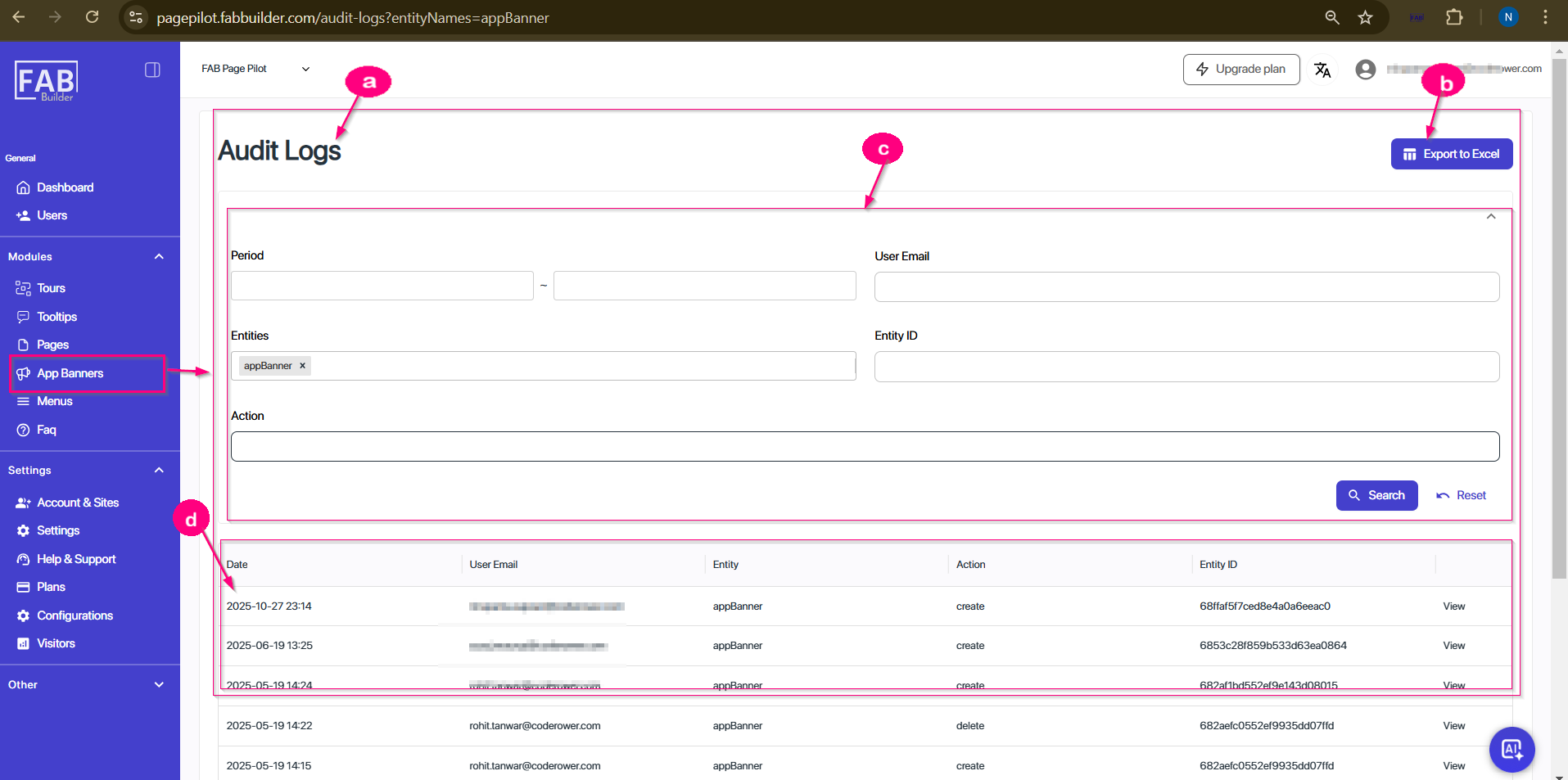
Screen-Audit Logs
User can view logs on the table column.