What Are Tags and How Do I Use Them to Organize Content?
It lets you create, view, and manage tags that help organize your content (like tours, tooltips, pages, or banners) inside the workspace.
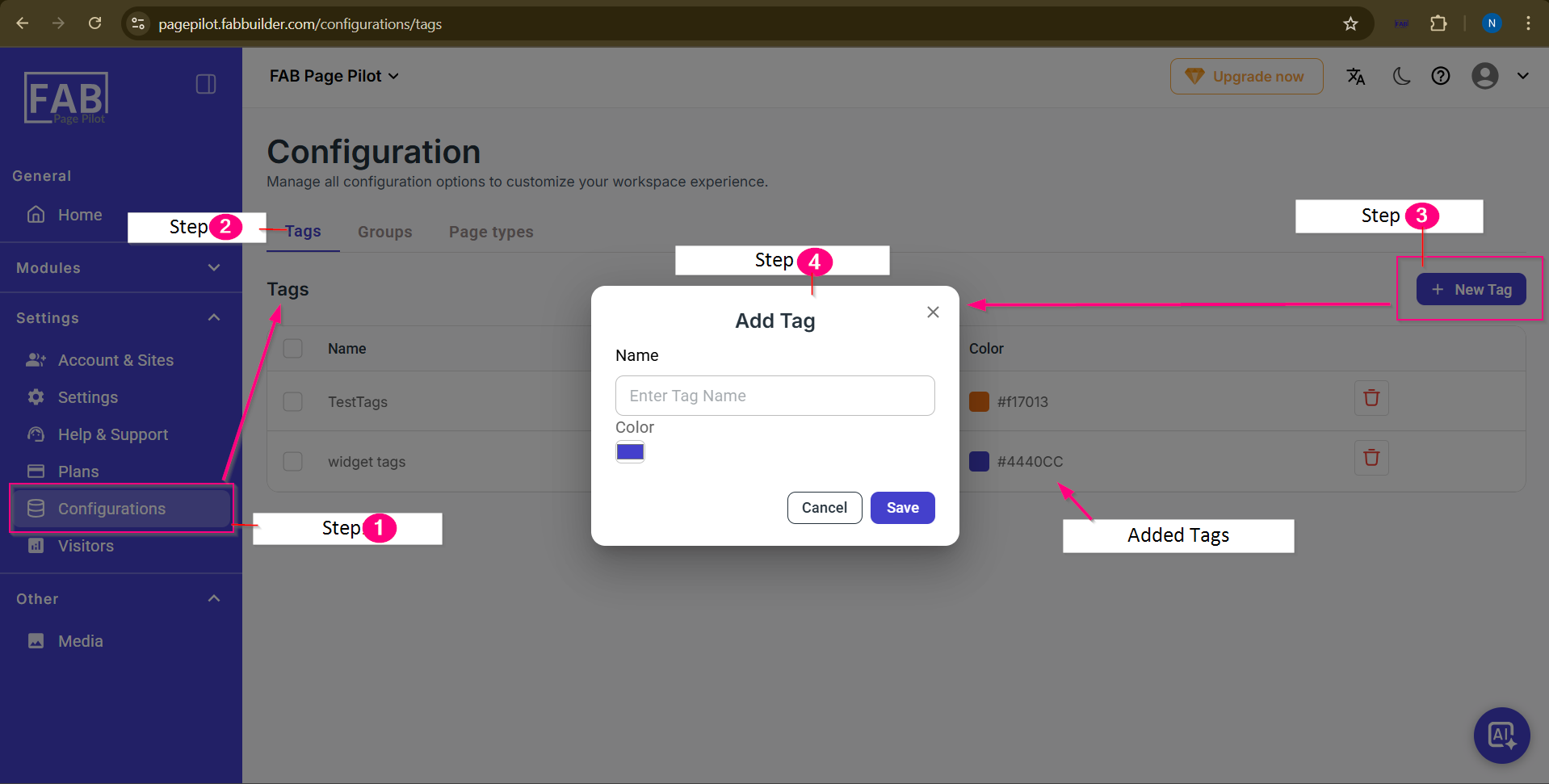
Screen- Tags
Step 1: Open Configurations
From the left sidebar, click Configurations under the Settings section.
This opens the configuration management area.
Step 2: Select Tags Tab
On the Configuration page, click the Tags tab.
This displays the list of all existing tags.
Step 3: Add a New Tag
Click the + New Tag button on the top-right corner.
This action opens the Add Tag popup.
Step 4: Create Tag
In the Add Tag popup:
- Enter the Tag Name
- Choose a Color (used for visual identification)
- Click Save to add the tag
- or Cancel to discard changes
Added Tags
Once saved, the new tag appears in the tags list with:
- Tag name
- Selected color
- Option to delete the tag