Configure One Time Tooltip Display
Configure One-Time Tooltip Display (Visitor Visual Editor)
Overview
PagePilot provides an option to display a tooltip only once to the user. This ensures that the tooltip is shown a single time and does not repeat for the same user.
Prerequisites
Before configuring one-time display, ensure the following:
- Tooltip/Tour is already created
- User has required access to Page Pilot FAB Builder
- Tooltip configuration (Element ID and Target Page) is completed
Steps to Configure One-Time Display
User must follow the step after successful Log in to https://pagepilot.fabbuilder.com
- Navigate to the Tooltip module
- Select the workspace where the tooltip is saved.
- Click on edit button of created tooltip
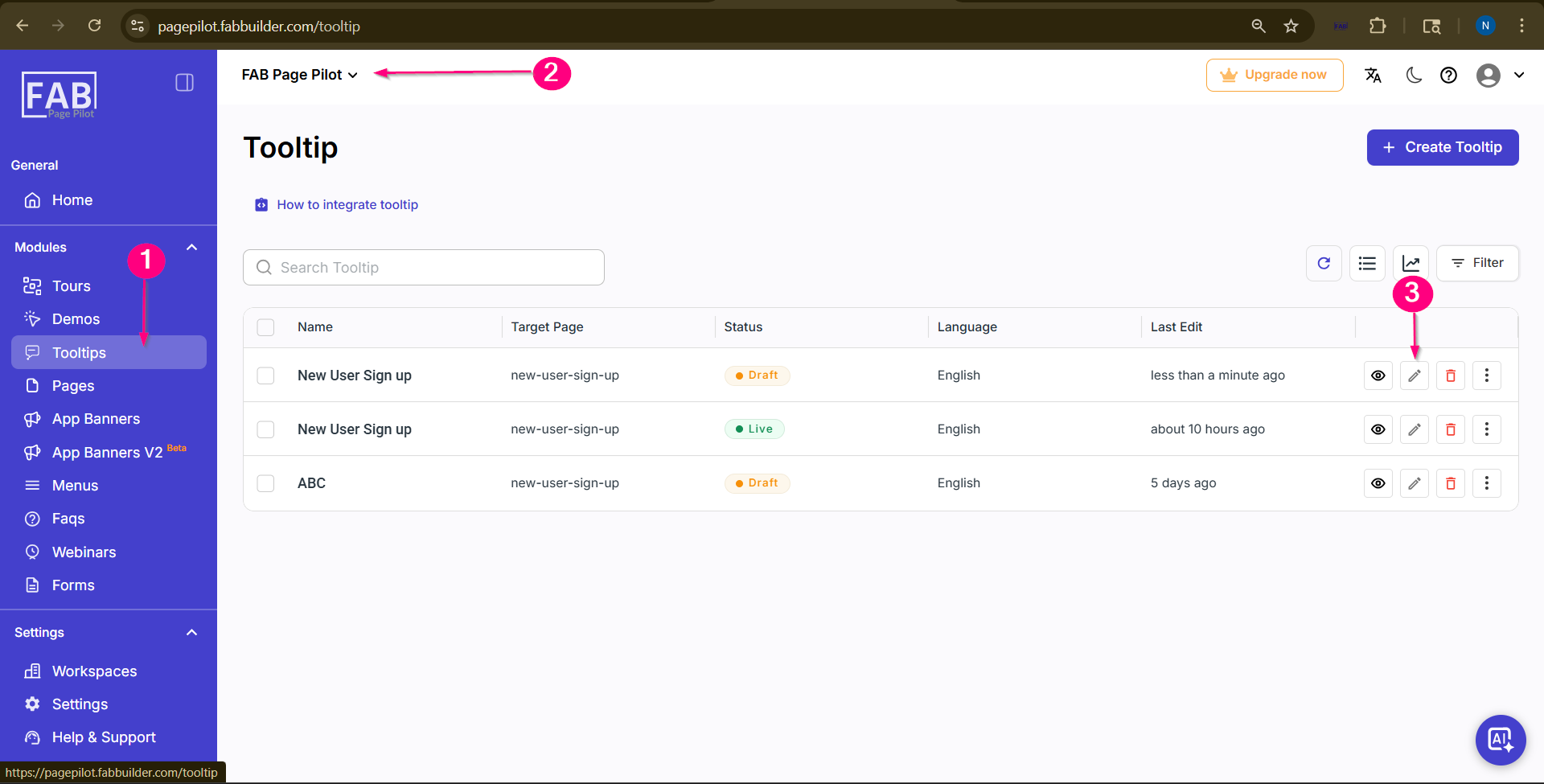
Screen- Select the Created Tooltip This click will redirected to the Visitor Visual Editor (Screen Below)configuration screen.User can view the created tooltip .
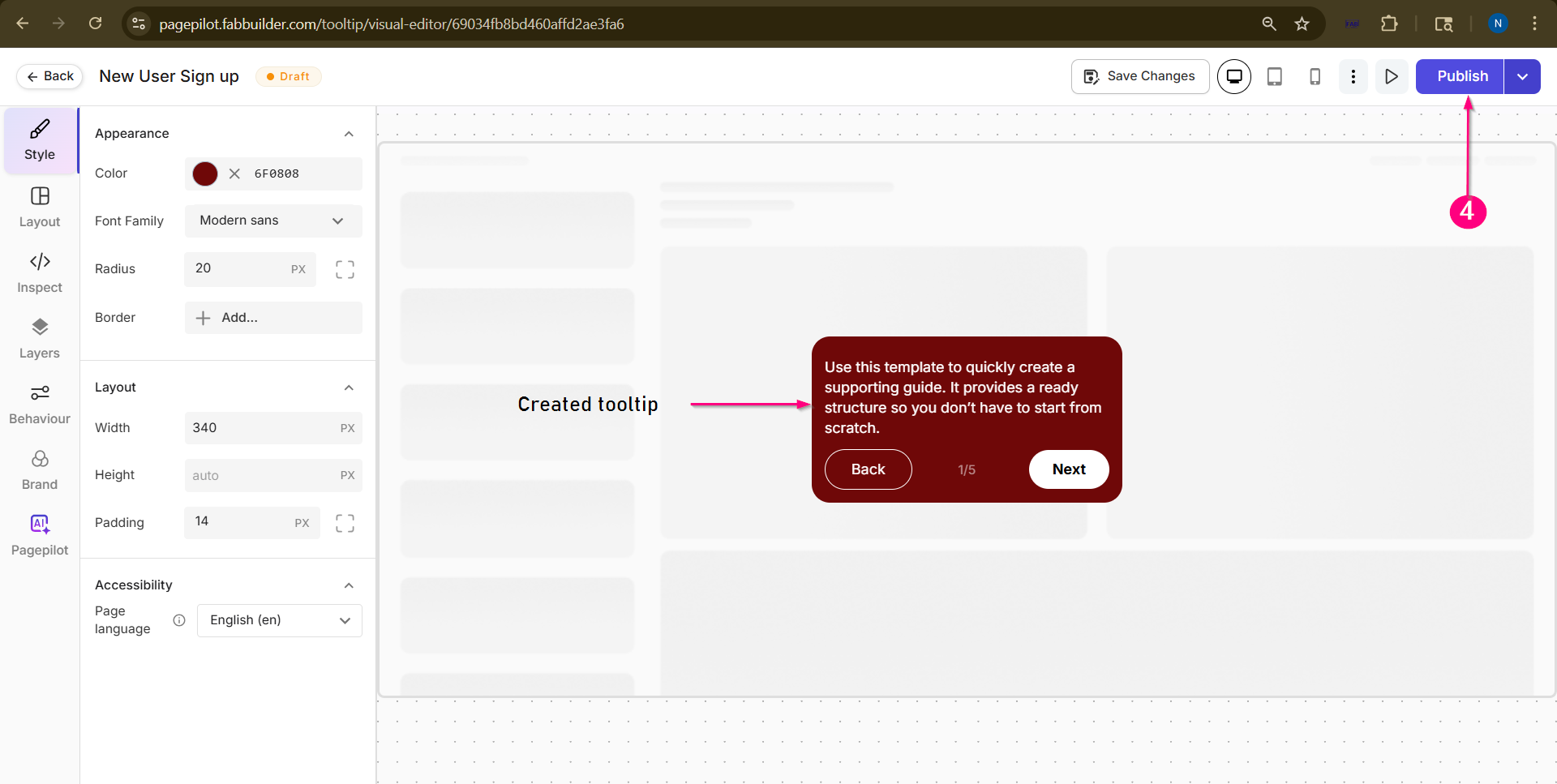
Screen- Created tooltip on visual editor screen and published step
4.Click on Publish on top corner.A pop screen will appear with one time tooltip setting with details.
Locate the option to control tooltip visibility on pop screen.
5.Enable the setting for “Show Only Once”.
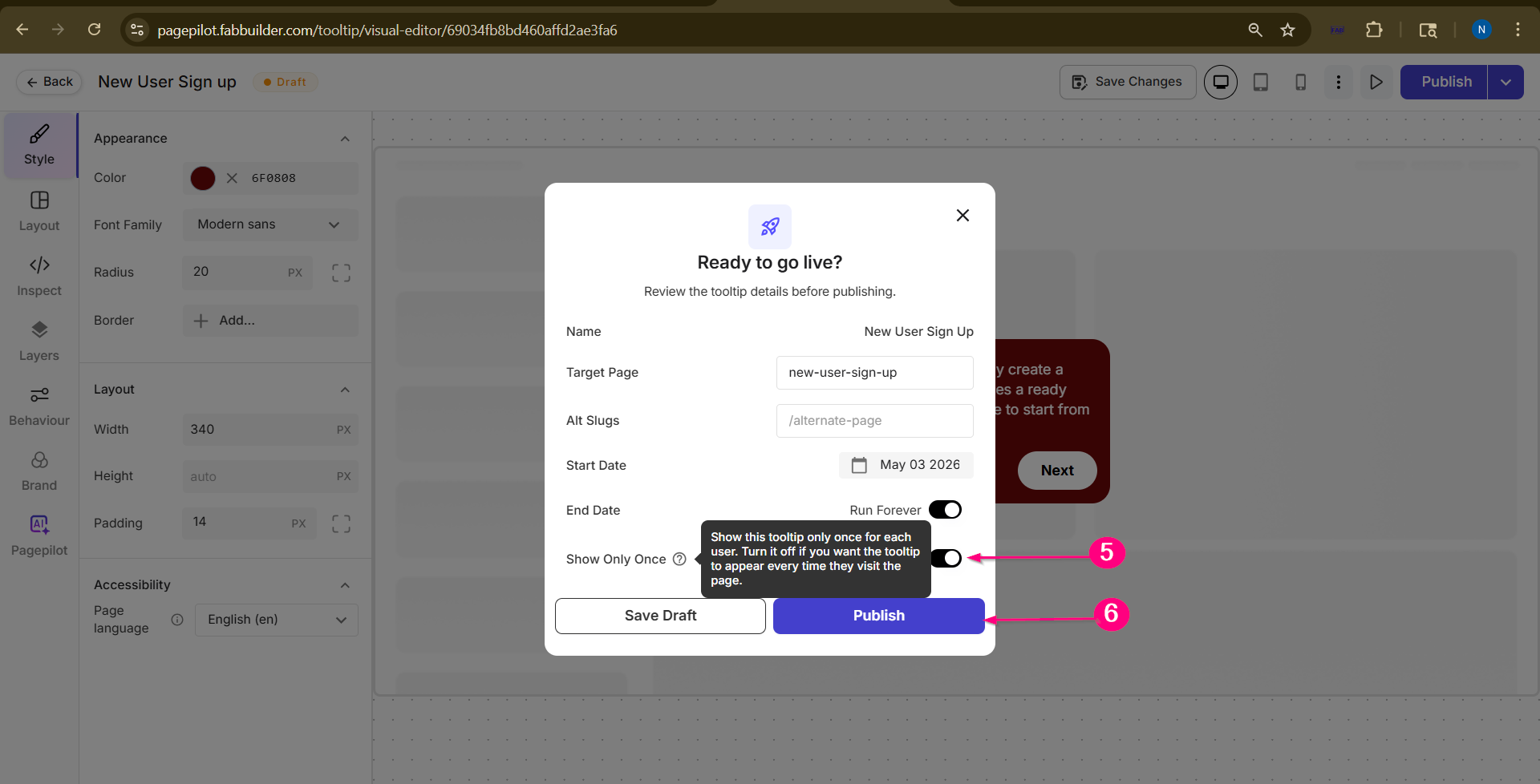
Screen- Enable "Show only Once"
Behavior
- When enabled, the tooltip will be displayed only one time per user
- After the first view, the tooltip will not appear again for the same user
Use Case
This feature is useful when:
- Showing onboarding guidance
- Highlighting new features
- Avoiding repeated interruptions for users
Summary
- Enable “Show Only Once” in Visitor Visual Editor
- Tooltip will appear only once per user
- Improves user experience by avoiding repetition