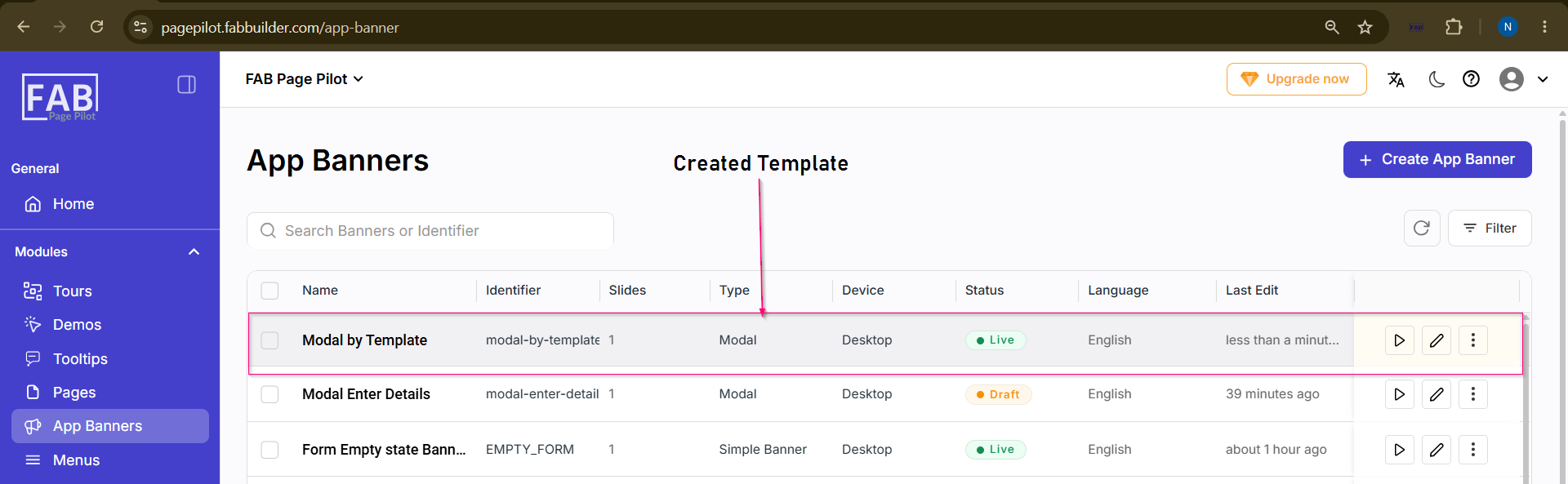
Create a Modal – By Template Method After successfully logging in, the user can navigate to the App Banners module from the left-side navigation panel. Follow the steps below to create a Modal using the Template method. Steps to Create a ModalStep 1: Open App Banners Module Step 2: Create a New App Banner
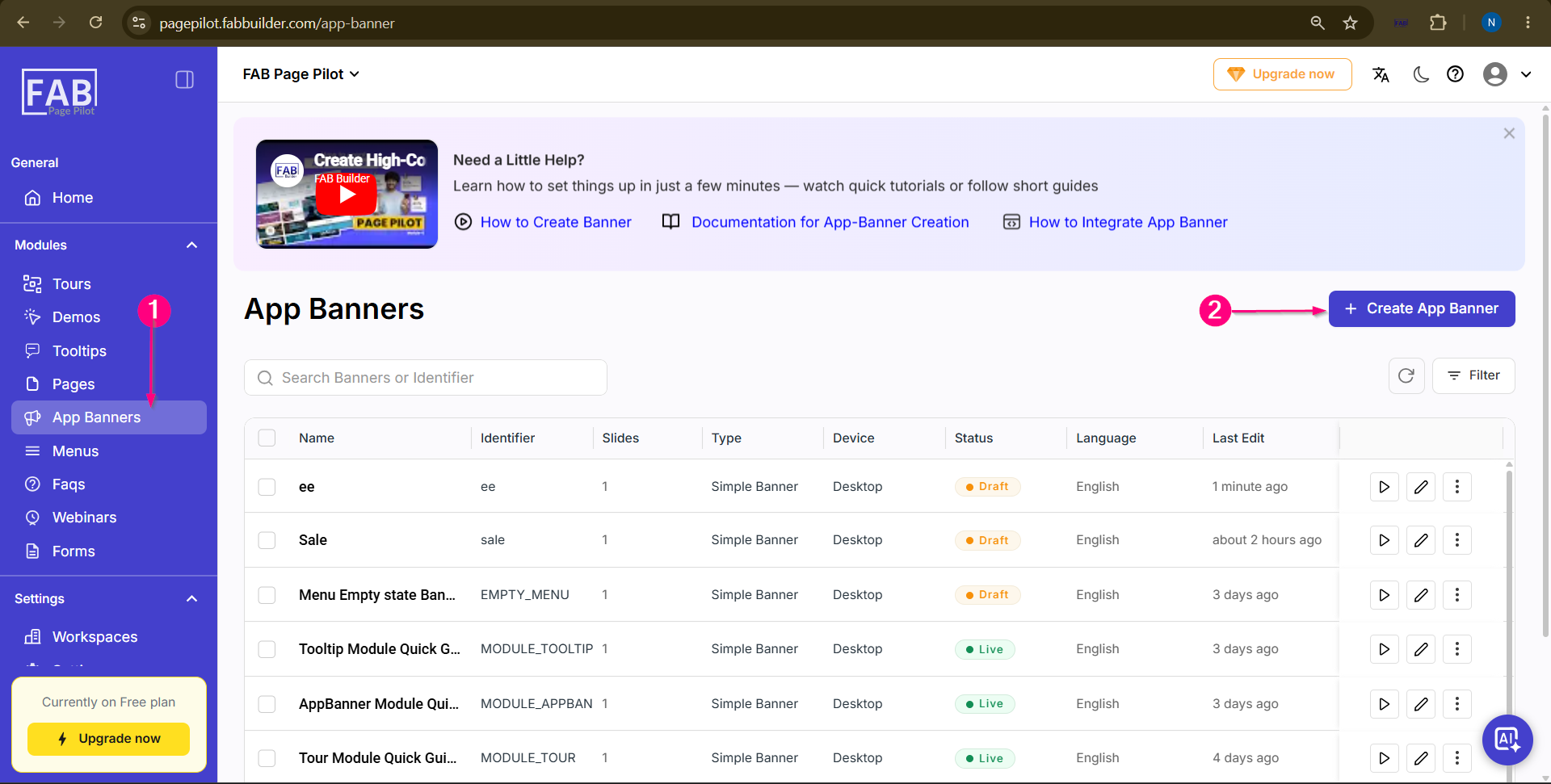
Step 3:Fill App Banner Details and Select Modal Type Select Modal as the app banner type and Enter the required details in the App Banner Details form.
Now Click the Next button. 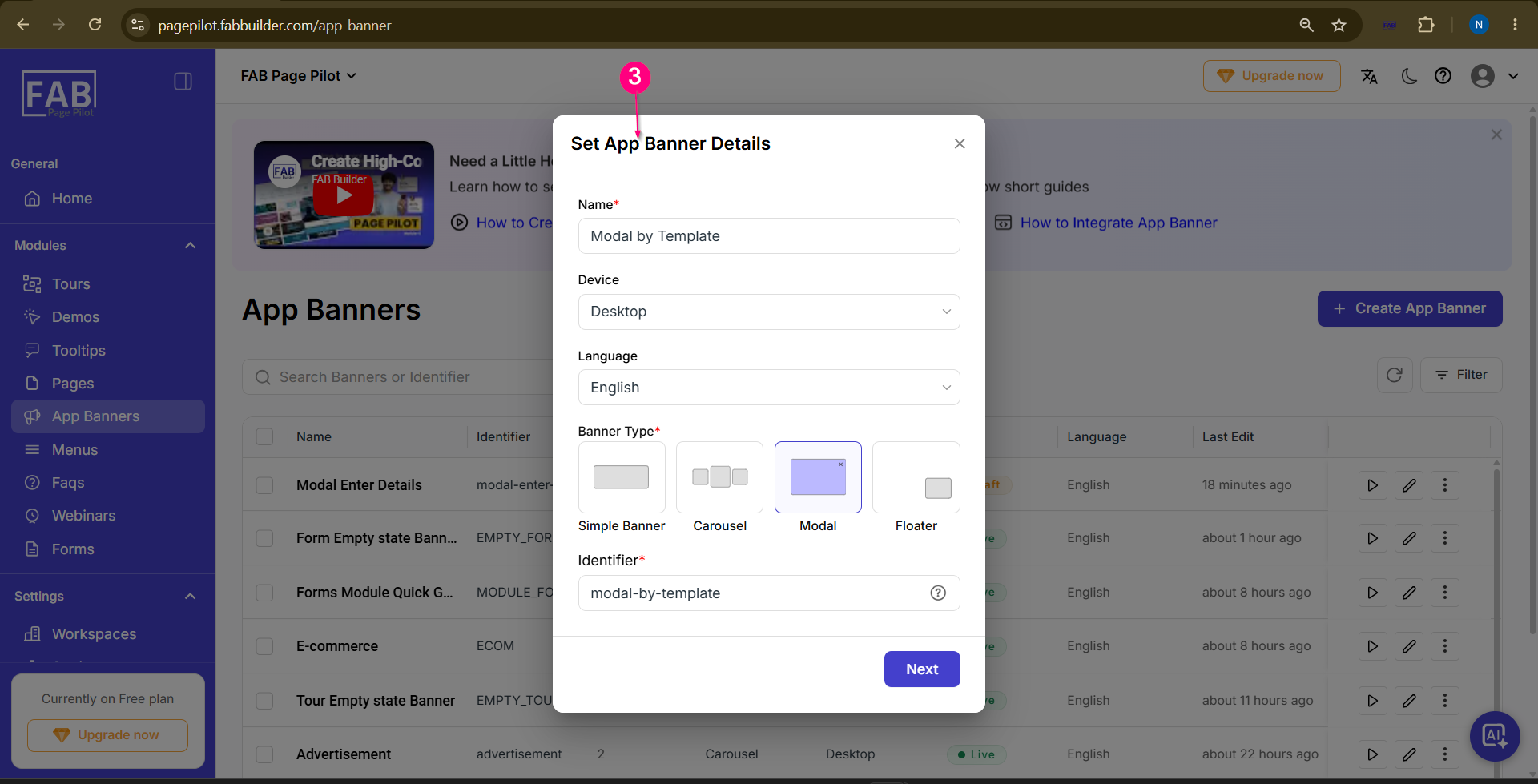 Step 4: Select Template Method Once the Template method is selected, the user is redirected to theVisual Editor, where the selected modal template can be customized by editing the available design blocks.
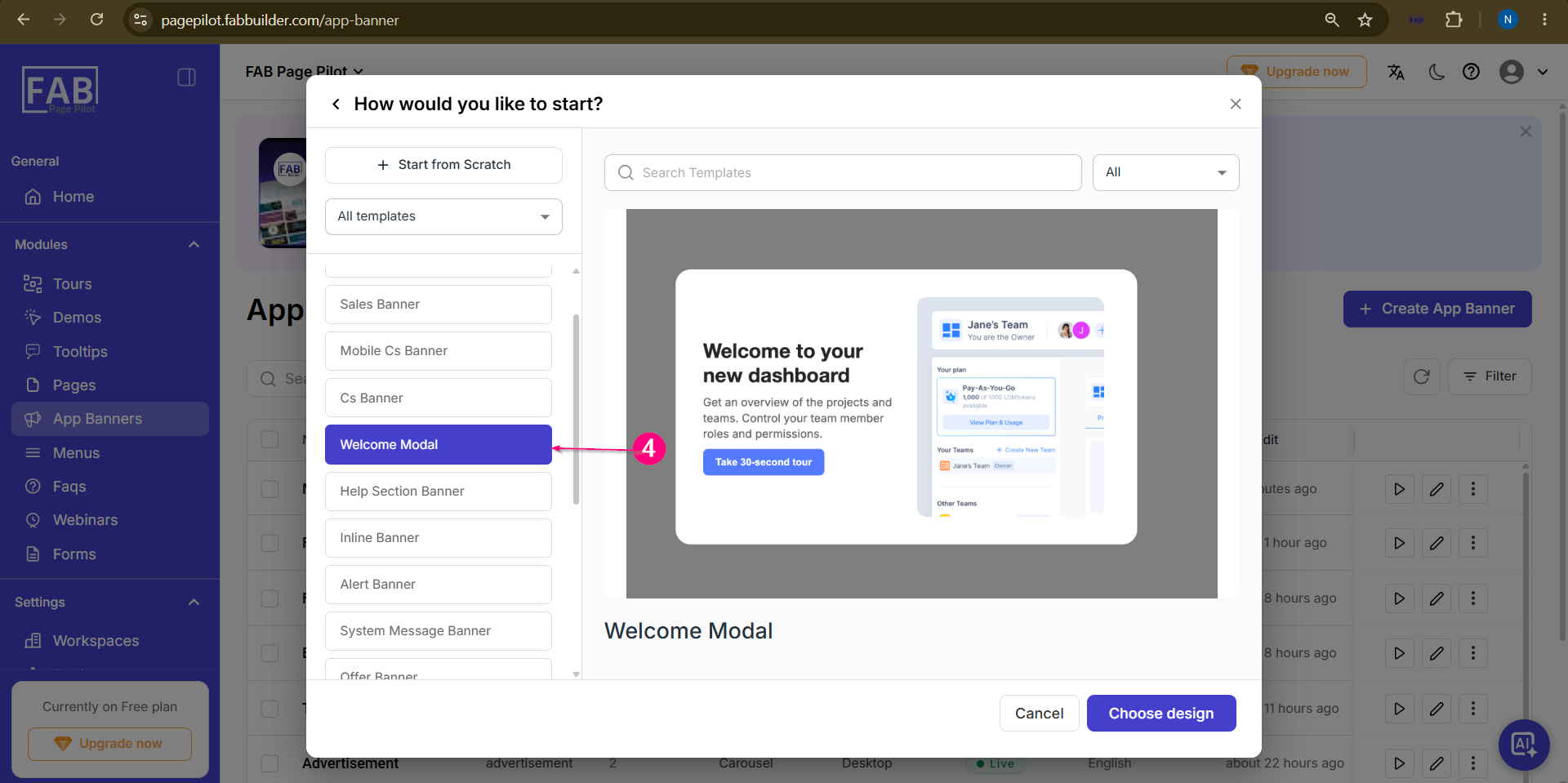 Screen: App Banner Method Step 5: Edit the selected Template Hover the cursor on canvas on selected template area and Select the required block or edit the existing blocks,content of the selected template.
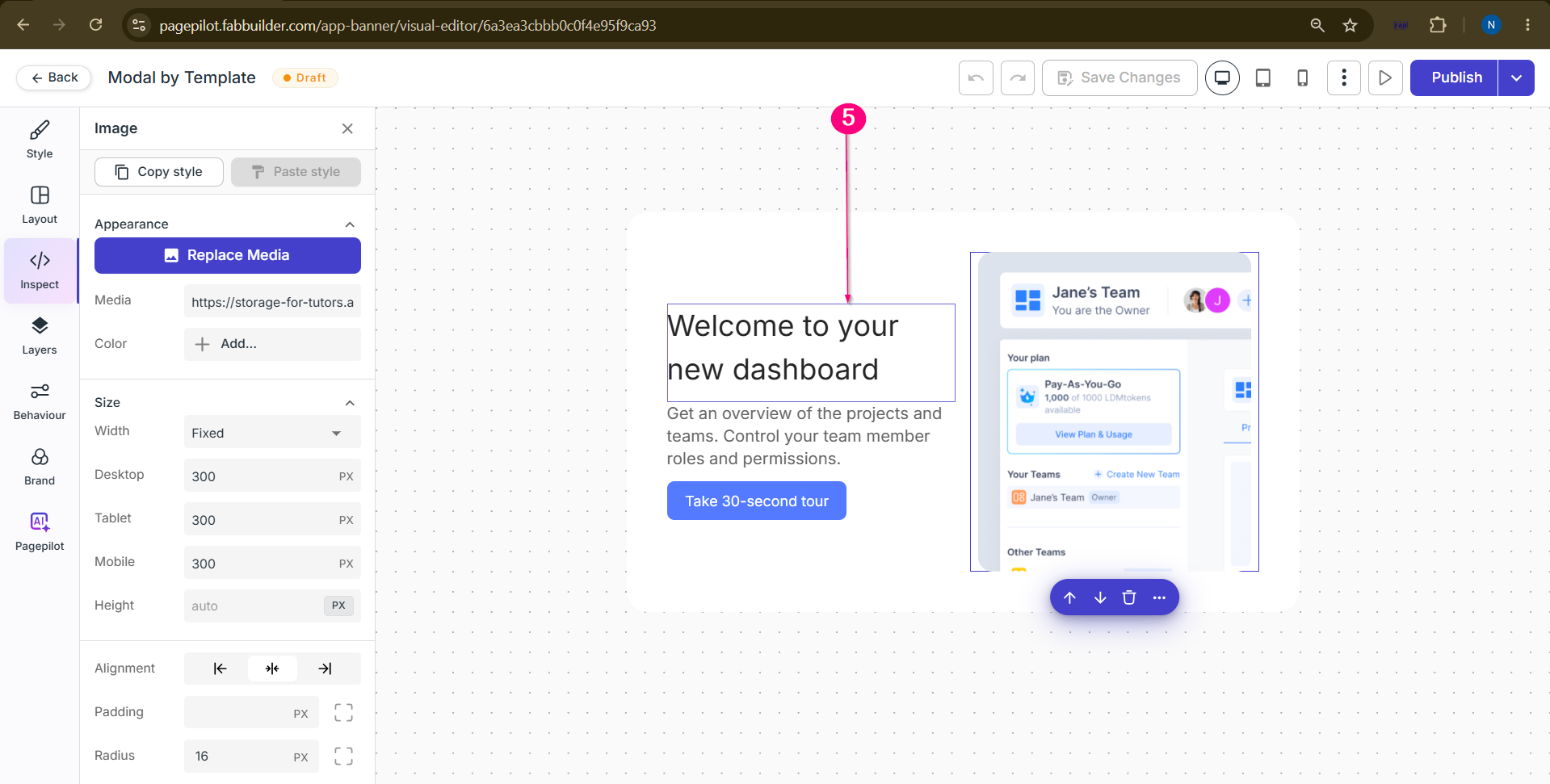 Screen- Edit the selected template
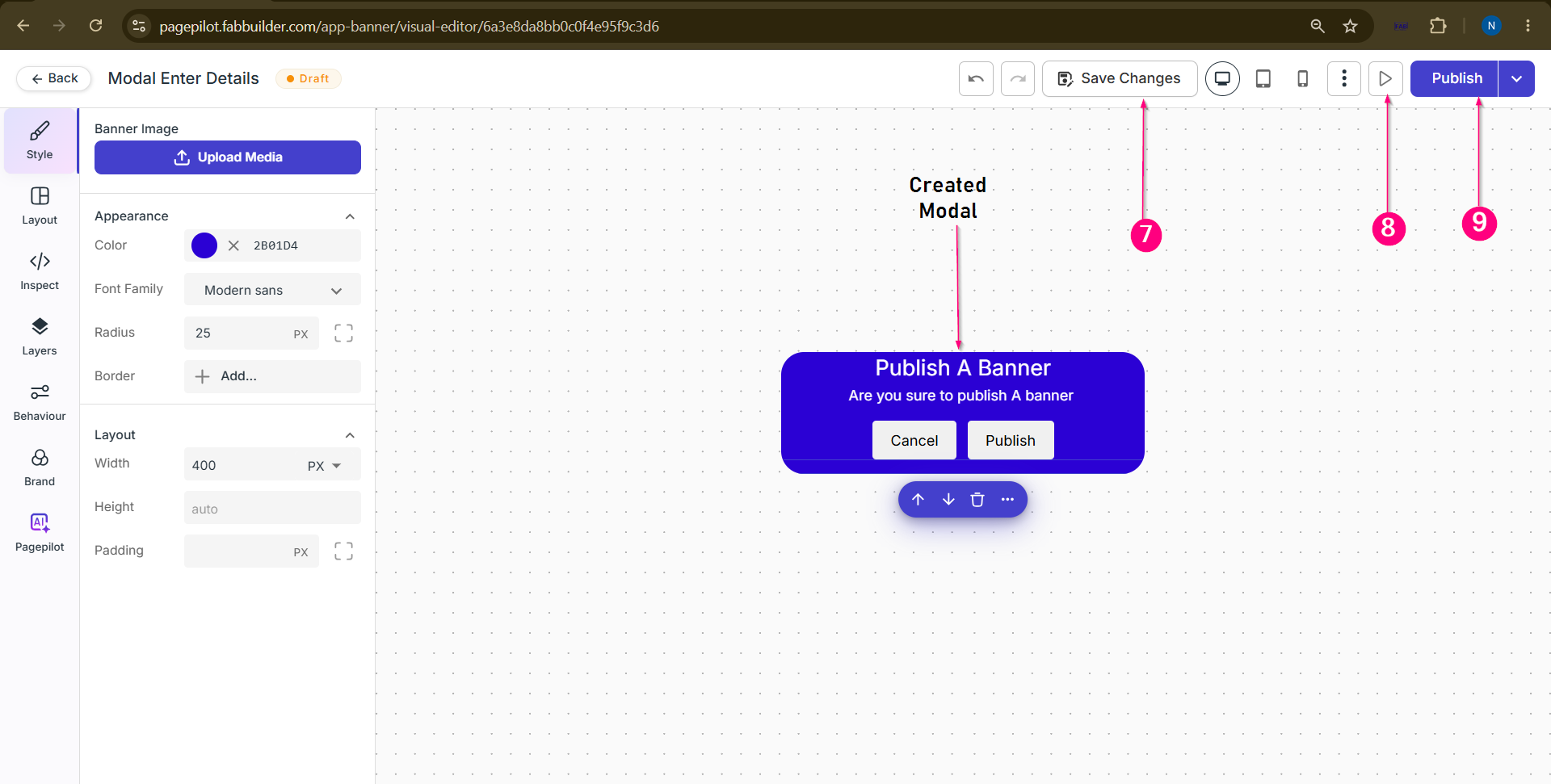
Step 6: Save Changes Step 7: Preview Modal Step 8: Publish Modal
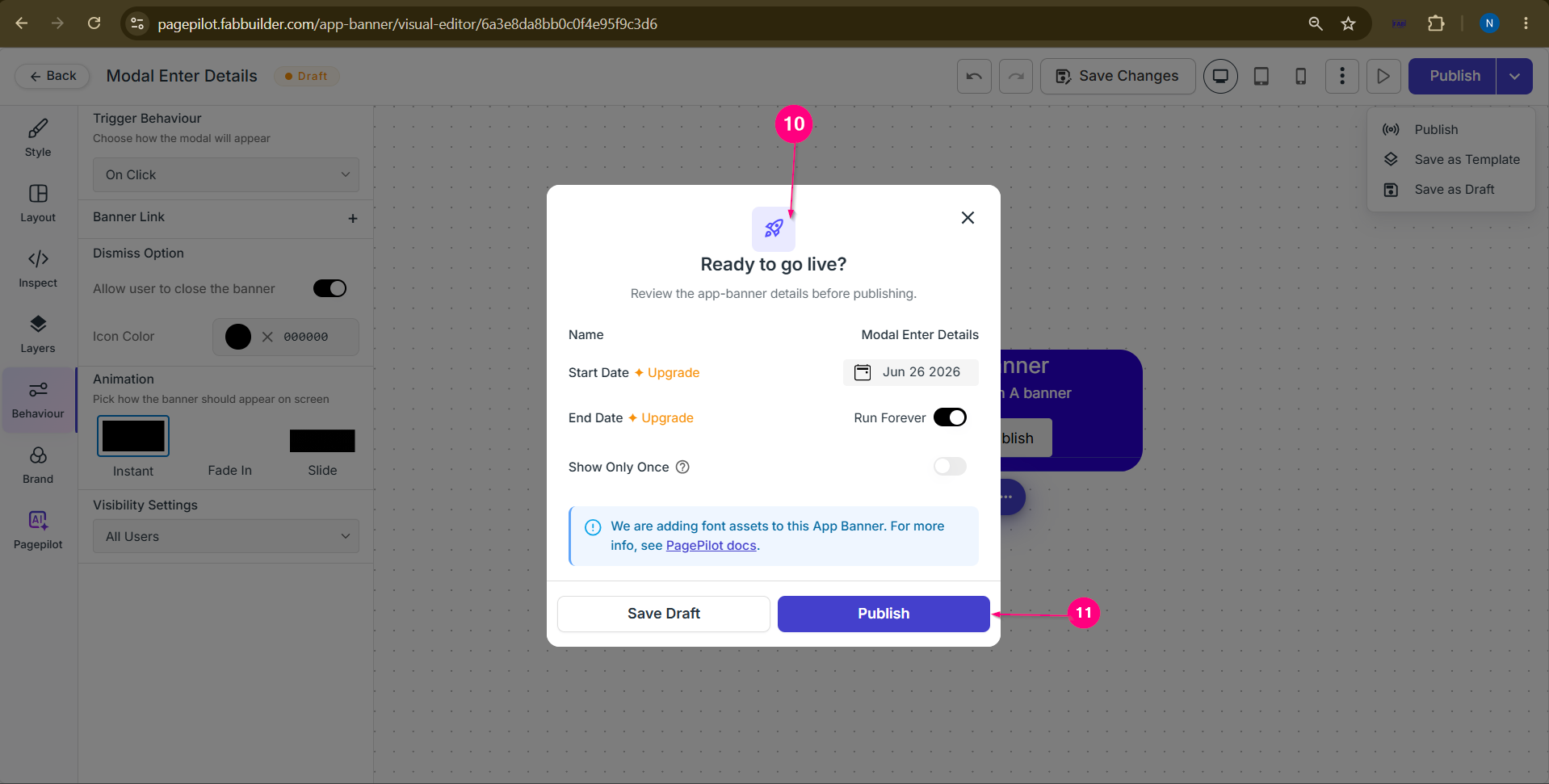
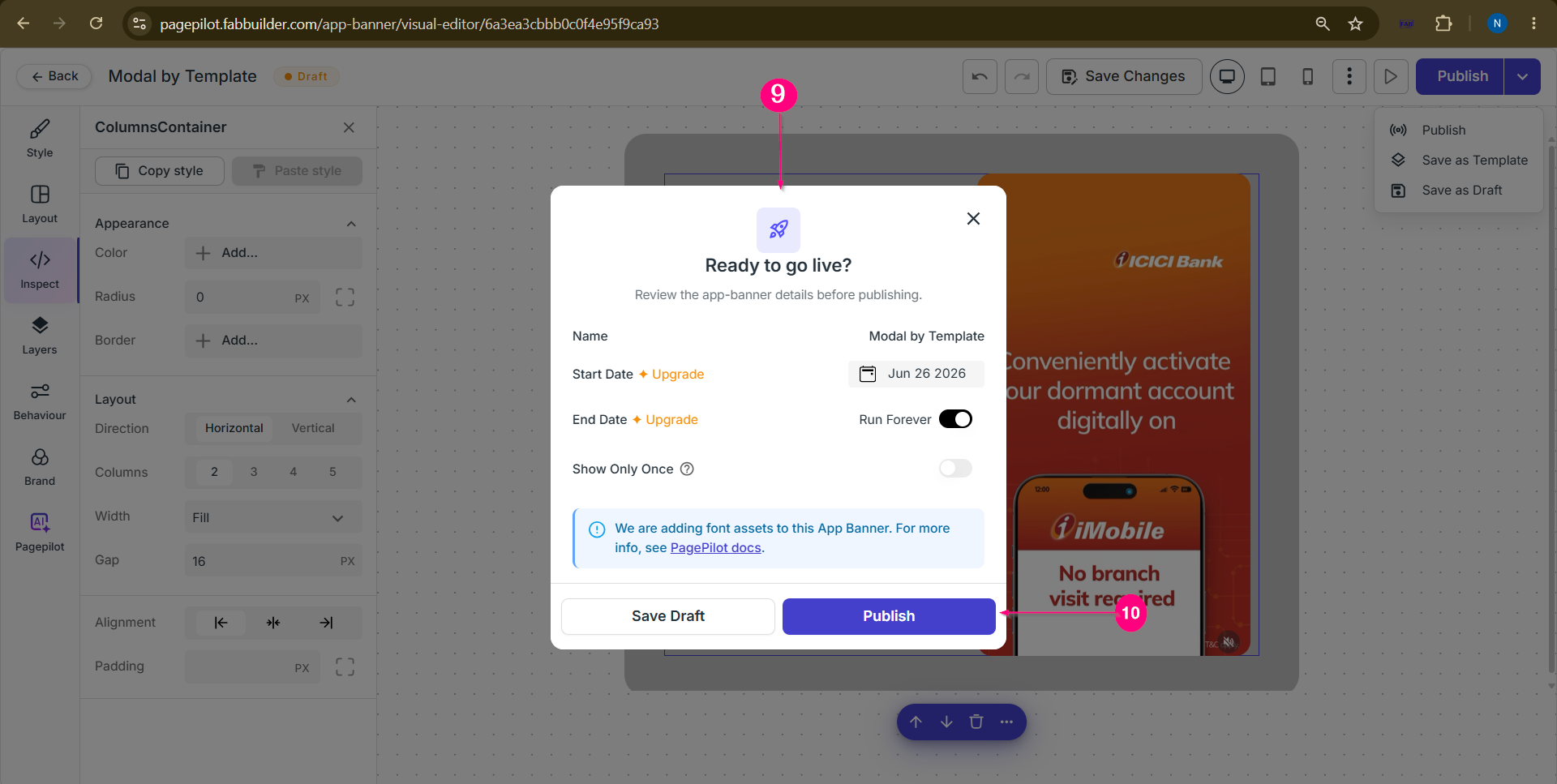
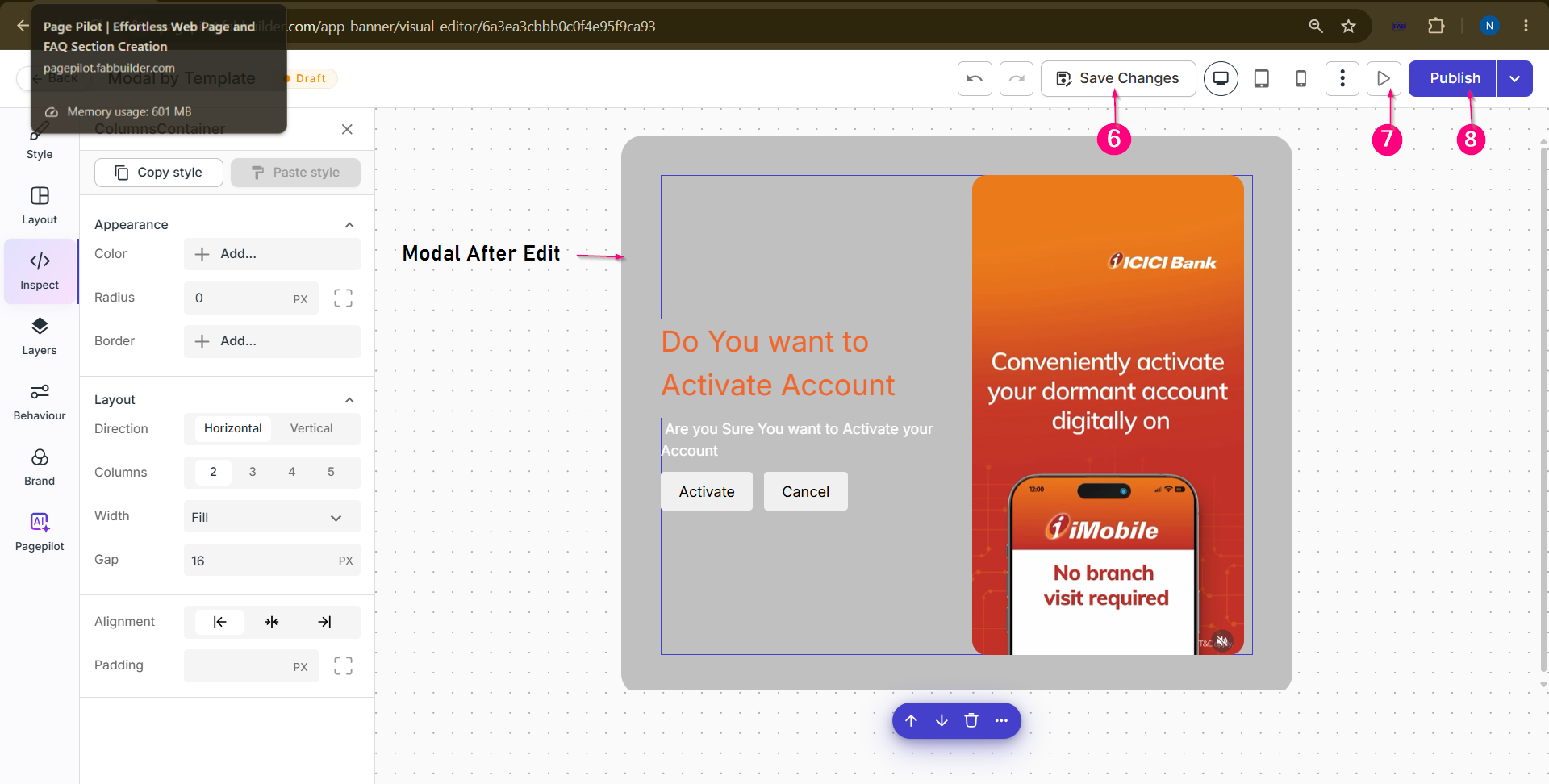 Screen- Template Design After Edit Step 9: Review Publish Details APublishpopup appears displaying the app banner details. Review the publish settings such asStart Date,End Date,Run Forever, andShow Only Once. Update the settings as required before publishing.
Step 10: Publish the App Banner Click the Publish button to make the app banner live.
Create a Modal – By Scratch MethodA Modal is a popup window displayed on top of the webpage content with a dimmed background. It is commonly used for forms, login/signup, offers, alerts, announcements, and user actions. After successfully logging in, navigate to the App Banners module from the left-side navigation panel and follow the steps below. Step 1: Open the App Banners ModuleClick App Banners from the left-side navigation panel. Step 2: Create a New App BannerClick the Create App Banner button. The App Banner Details form appears.
Enter your text here Step 3: Enter App Banner Details Enter the required details such asName,Device,Language, and selectModalas theApp Banner Type. and continue to the Next Step Click the Next button.
Screen – Create App Banner Step 4: Select the Creation Method Select the Start from Scratch method. The Visual Editor opens with a blank canvas to create the modal from scratch.
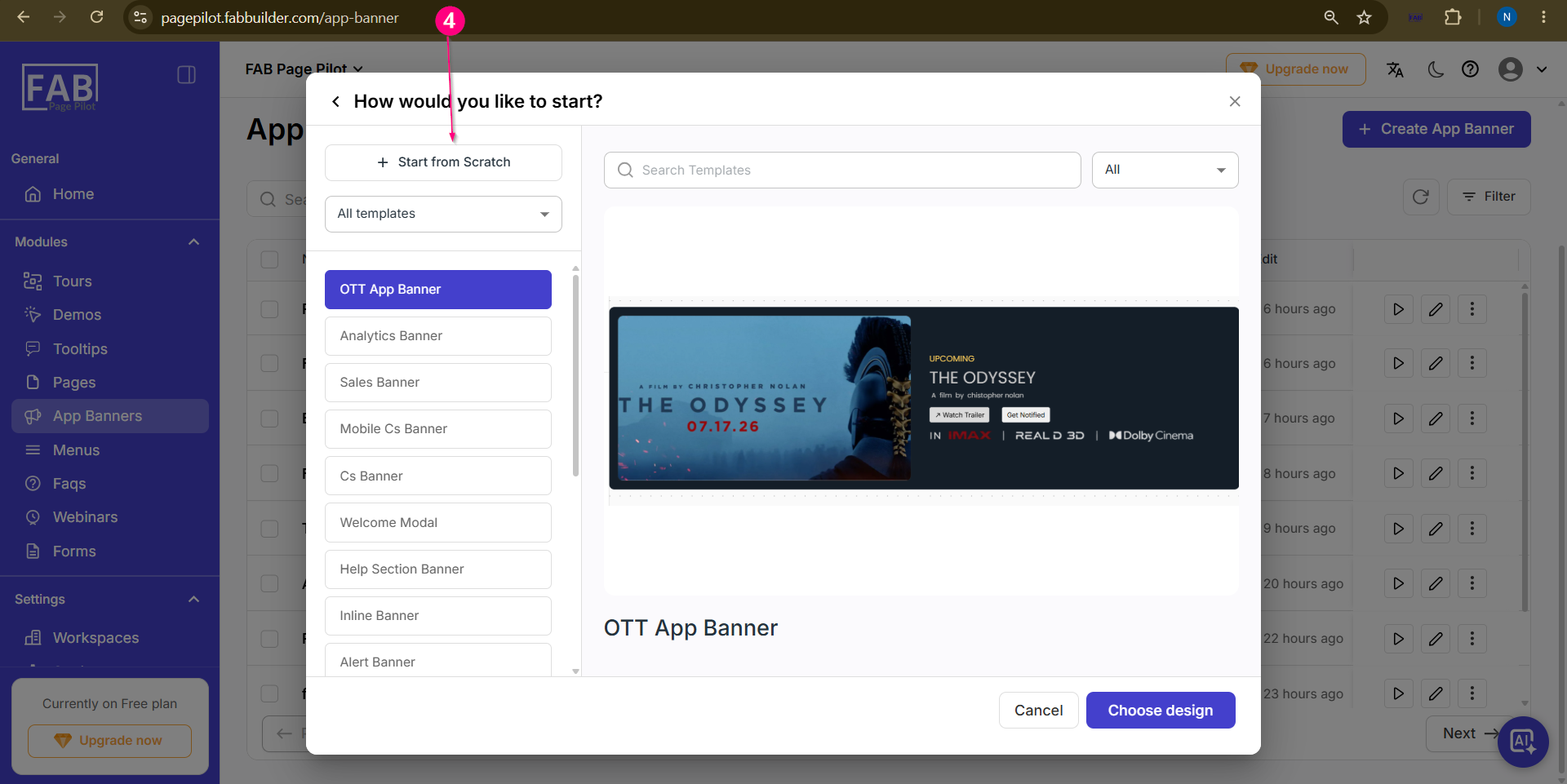 Screen – Select the Method to Create App Banner
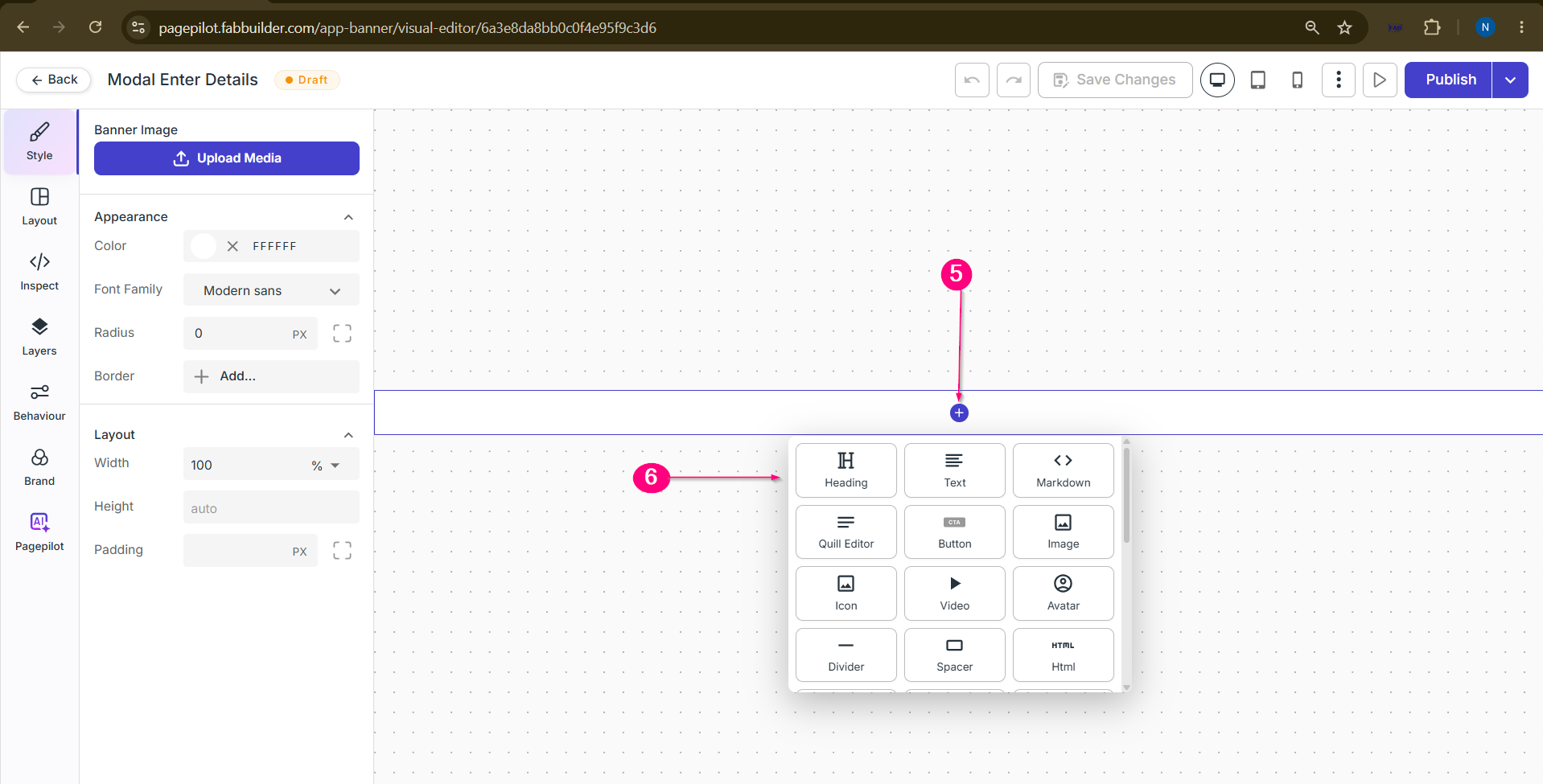
Step 5: Open the Design Block PanelClick the Plus (+) button on the canvas or the Layout tab to open the Design Block Panel. Screen – Open Design Block Panel Step 6: Add Design Blocks and Modal Content |