Create a Tooltip Using the Scratch Method This documentation explains the step-by-step process to create a tooltip using the Scratch Method in the Page Pilot. Prerequisites· User has valid login access to the Page Pilot. · Required permissions for Tooltip Management are enabled. · Details of the target page and element Id.
After successful login to the Page Pilot, the user will land on the dashboard screen.
Step 1: Open the Tooltip ModuleClick on the Tooltip tab from the left-side menu panel.
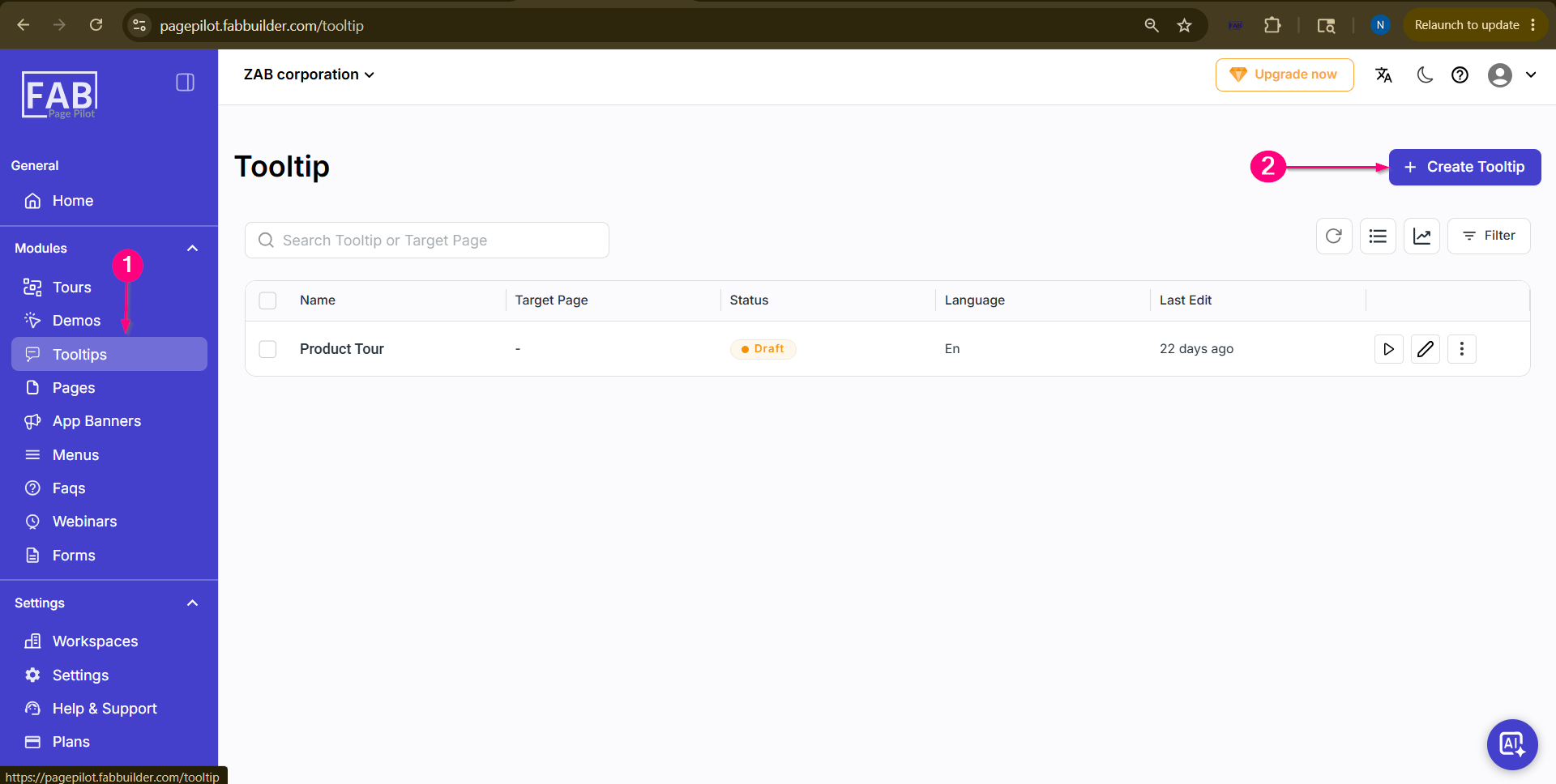 Screen- Access to Tooltip
Step 2: Click on “Create Tooltip”Click the Create Tooltip button available on the Tooltip dashboard.
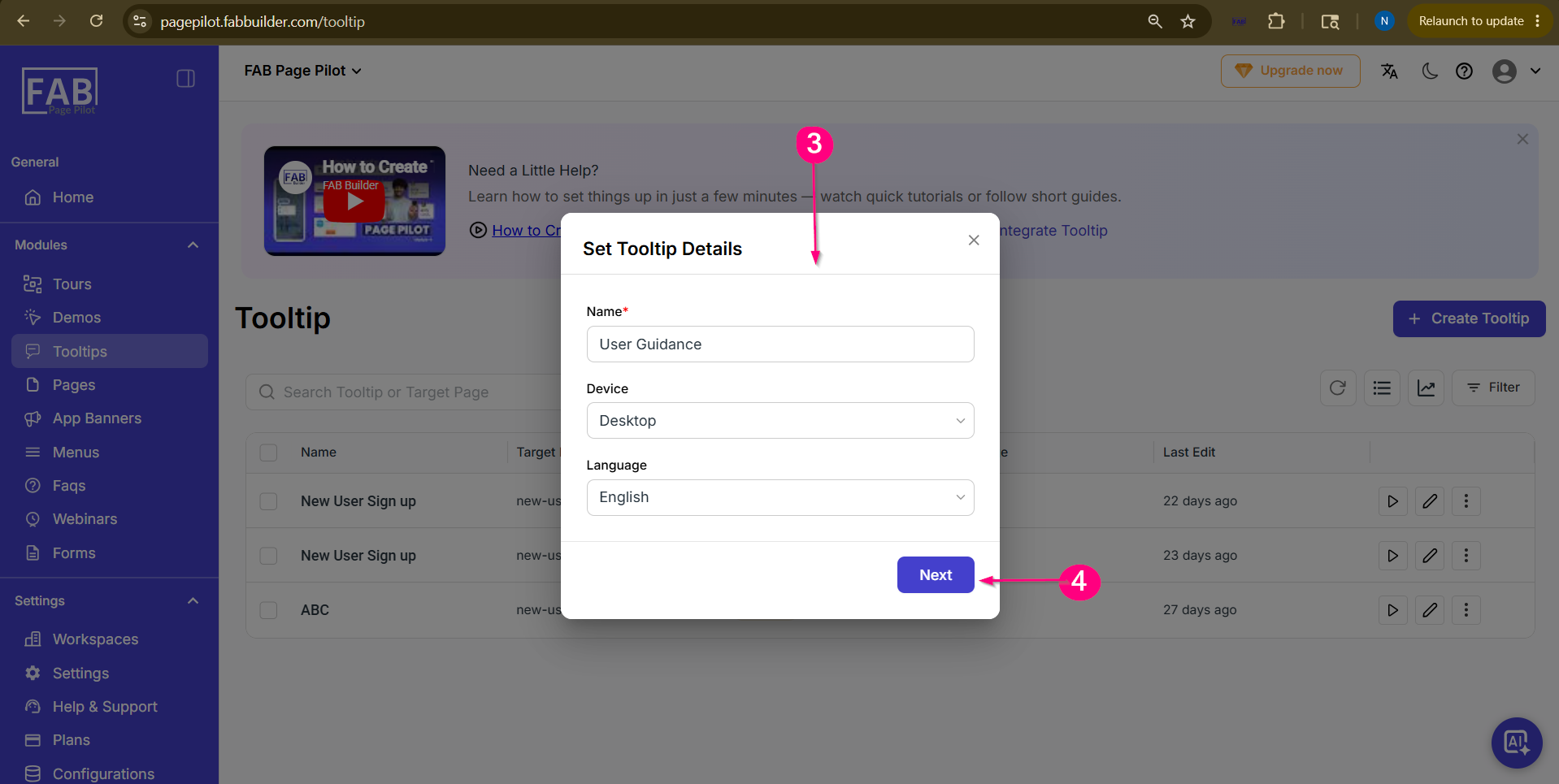 Screen- Add Tooltip name Step 3: Enter Tooltip DetailsA popup window will appear where the user needs to enter the tooltip details:
Step 4: Click on Next Button
After entering all required details, click Next.
Step 5: Select Tooltip Creation MethodAnother popup screen will appear showing two methods for creating a tooltip: 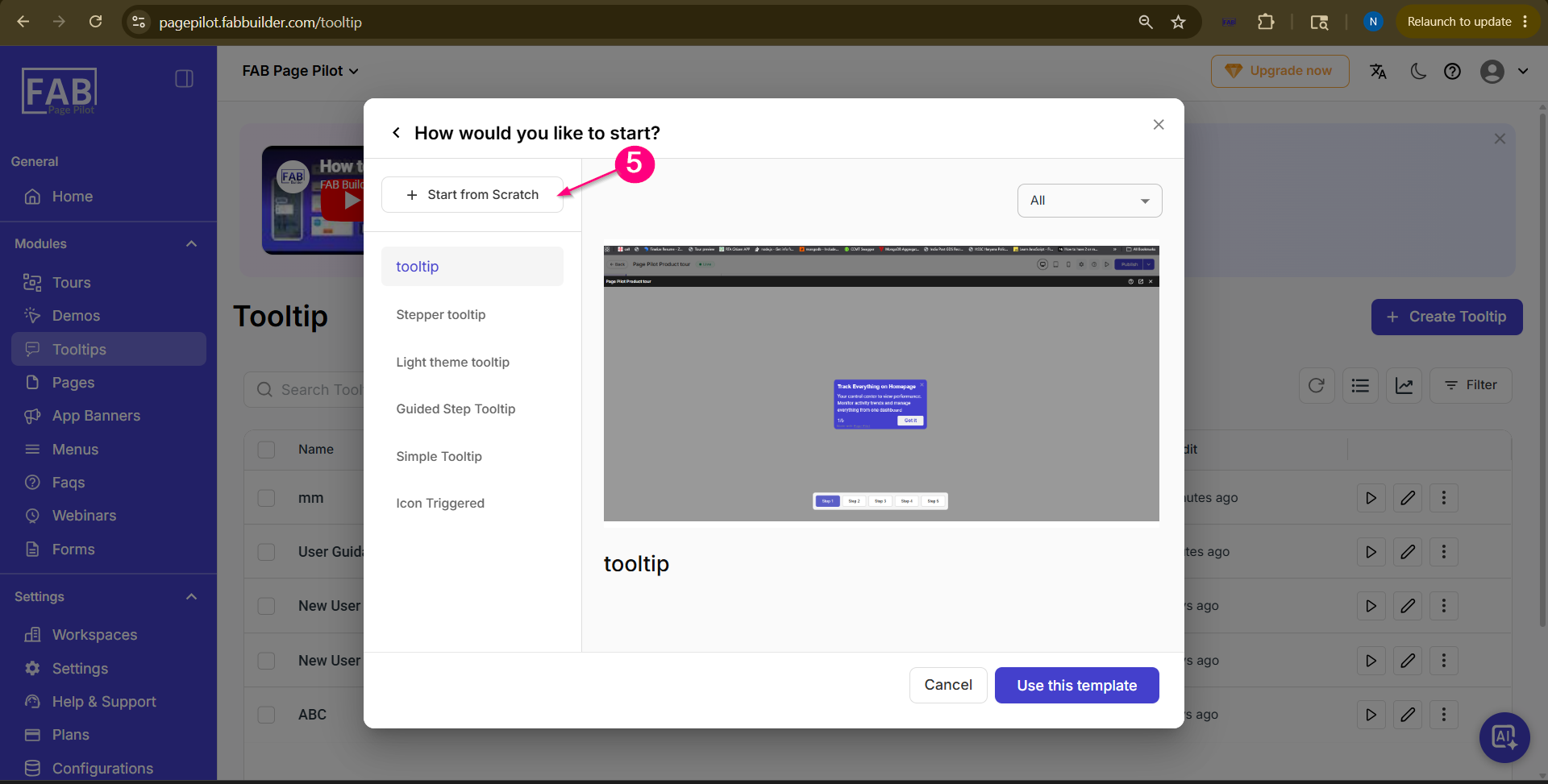 Screen-Select Scratch Method
Step 6: Open Block Panel and Select Block
Inside the Visual Editor Screen, the user
can add tooltip blocks by:
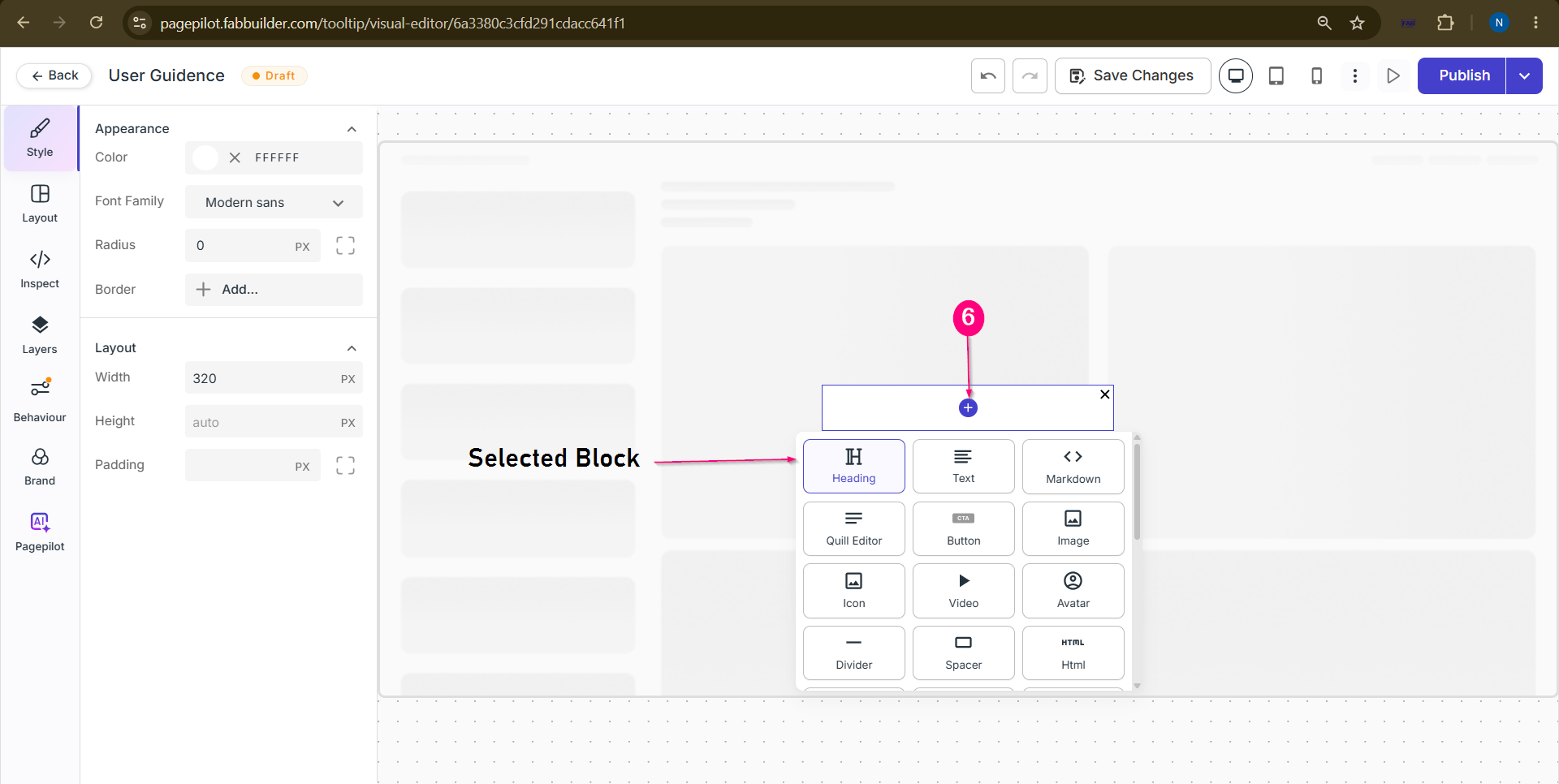
Screen-Select the Block Step 7: Add Block(s)to customize Tooltip
Customize the tooltip by:
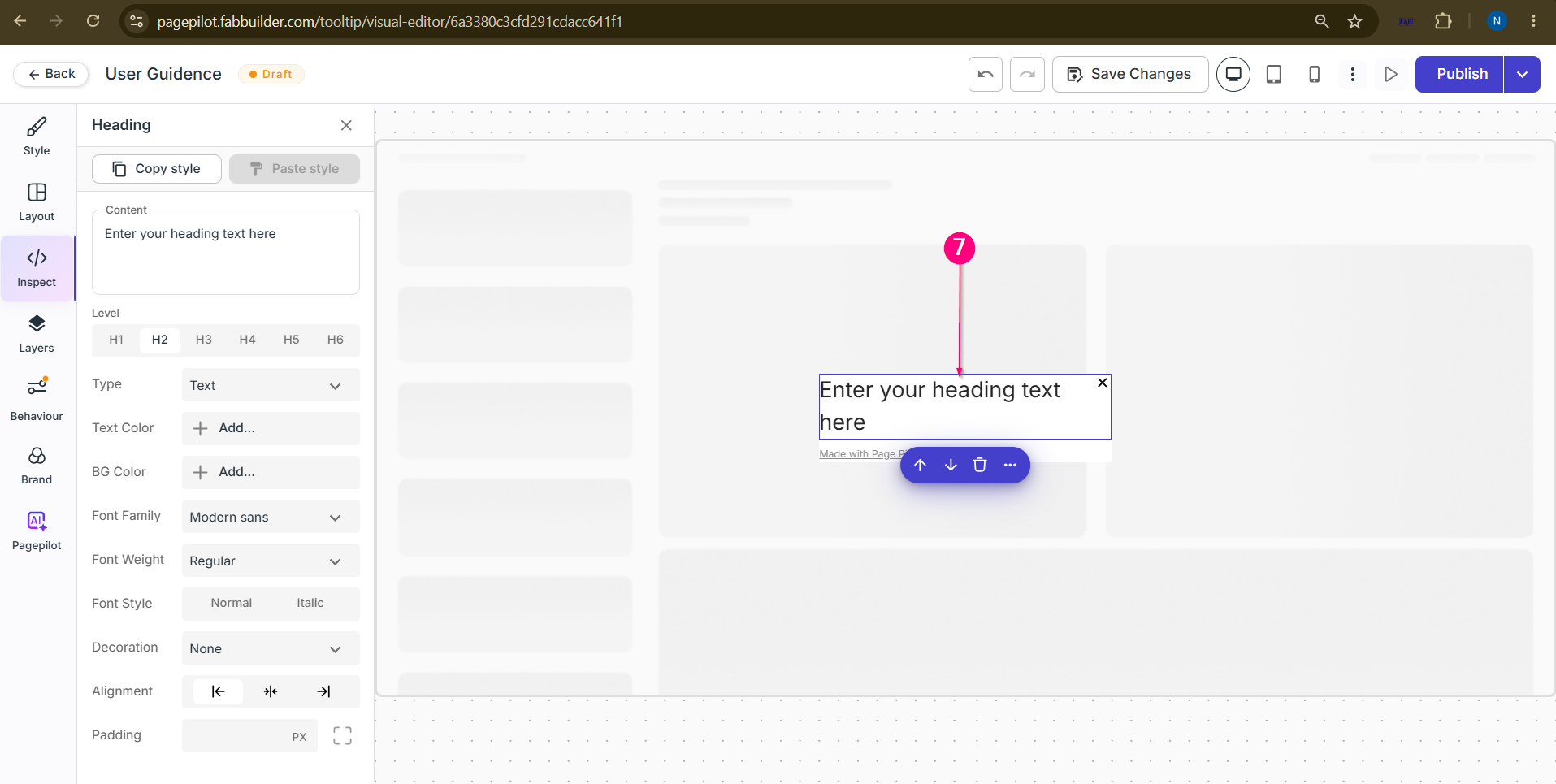 Screen- Edit Tooltip content
Step 8: Add Element IDClick on behaviour tab and Enter the Element ID where the tooltip should be displayed on the target page.
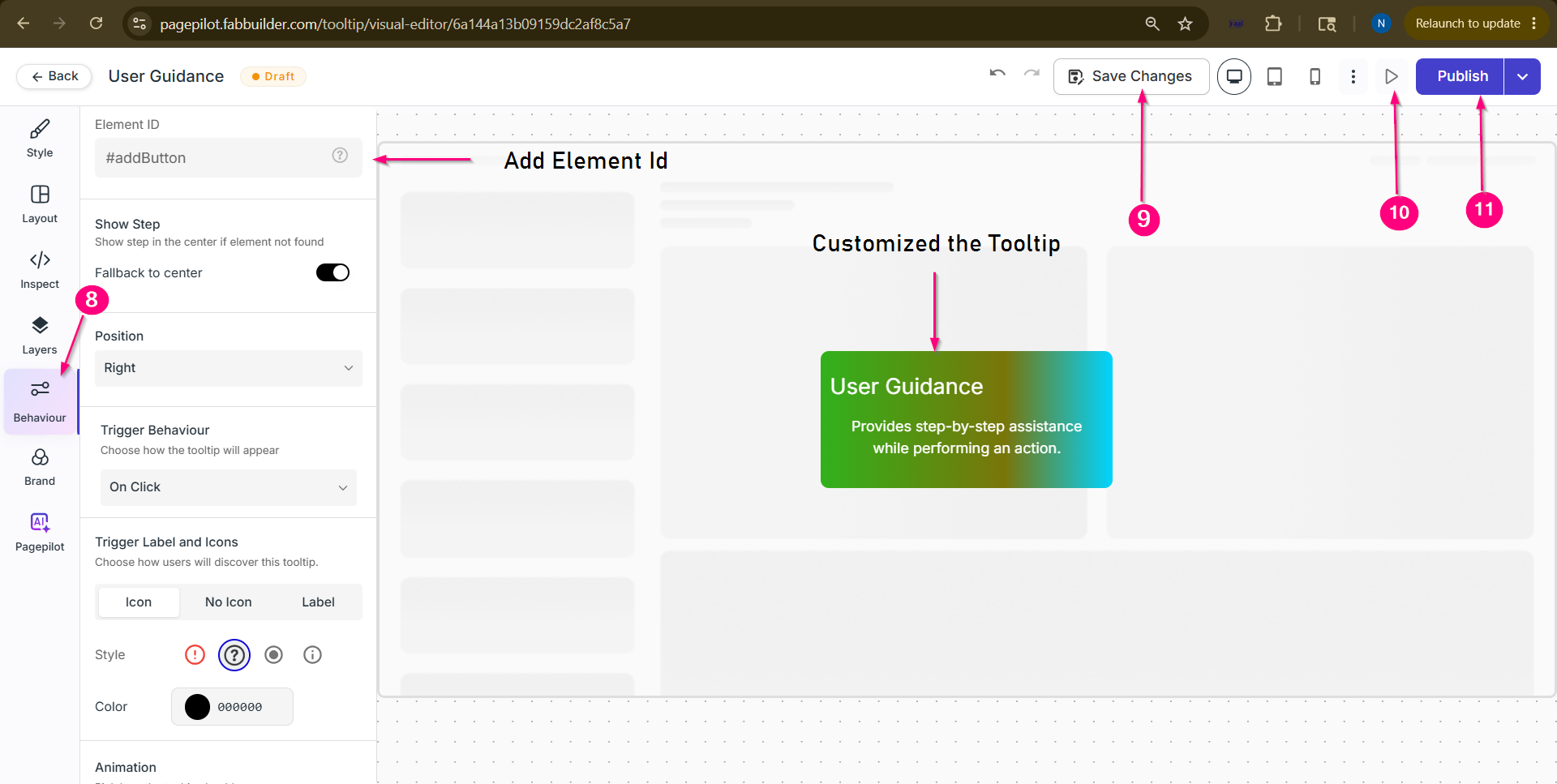 Screen-Add Element ID
Step 9: Save the Tooltip
Click on the Save button to save the tooltip configuration.
Step 10: Preview the Tooltip
Click on the Preview button to verify the tooltip appearance and functionality.
Step 11: Publish the Tooltip
Click on the Publish button. Step 12: Add Details to Live
A popup screen will appear where the user can configure additional publishing details:
Step 13: Live tooltip and View the Created TooltipAfter entering the required details, Live the tooltip by clicking on Publish or save as draft.
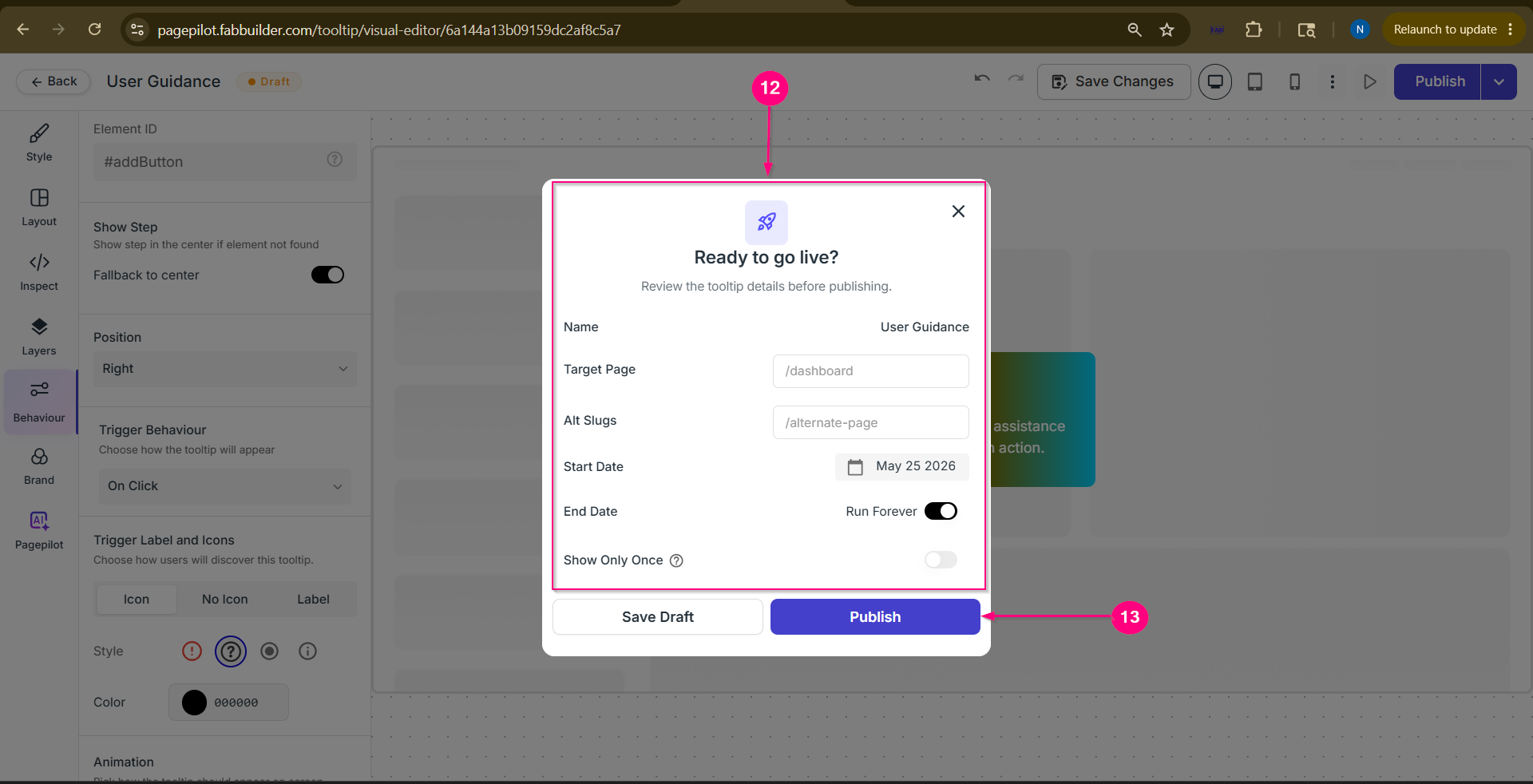 Screen- Live the Tooltip Once the tooltip is successfully published, the user can view the created tooltip on the Tooltip Dashboard 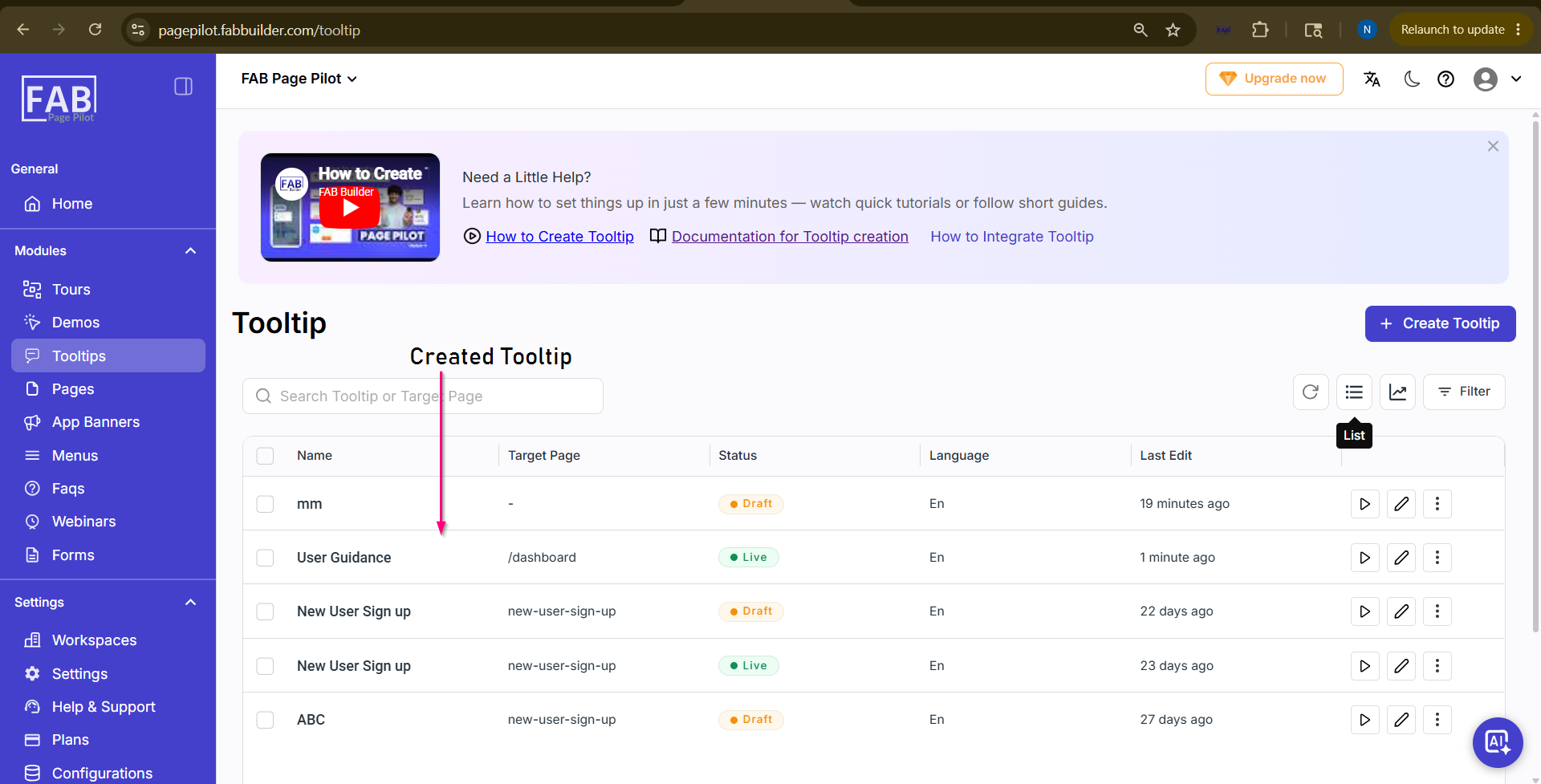 Screen- View the Created Tooltip |