CarouselA carousel is a set of slide that user can slipe and navigate through. Ket Point
Create the Carousel- By Scratch
After successful log in user can navigate the app banner module on left side navigation Panel. To create the app banner user follows the steps mentioned below.
Step 1: Open the App Banner Module
Navigate to the App Banner module from the left-side navigation panel.
Step 2: Click on Create a New App Banner
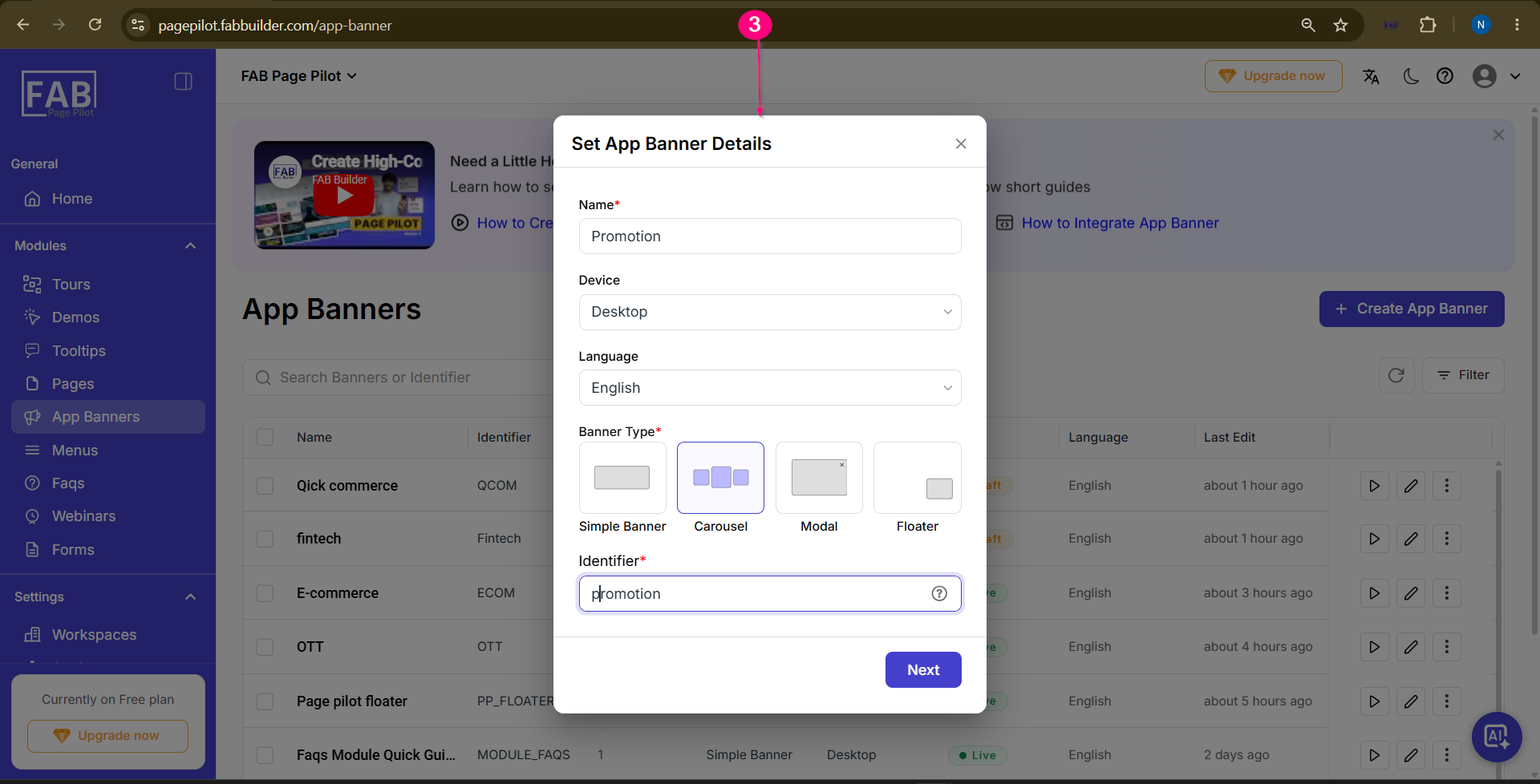
Click the Create App Banner button. The App Banner Details form will appear on the screen. 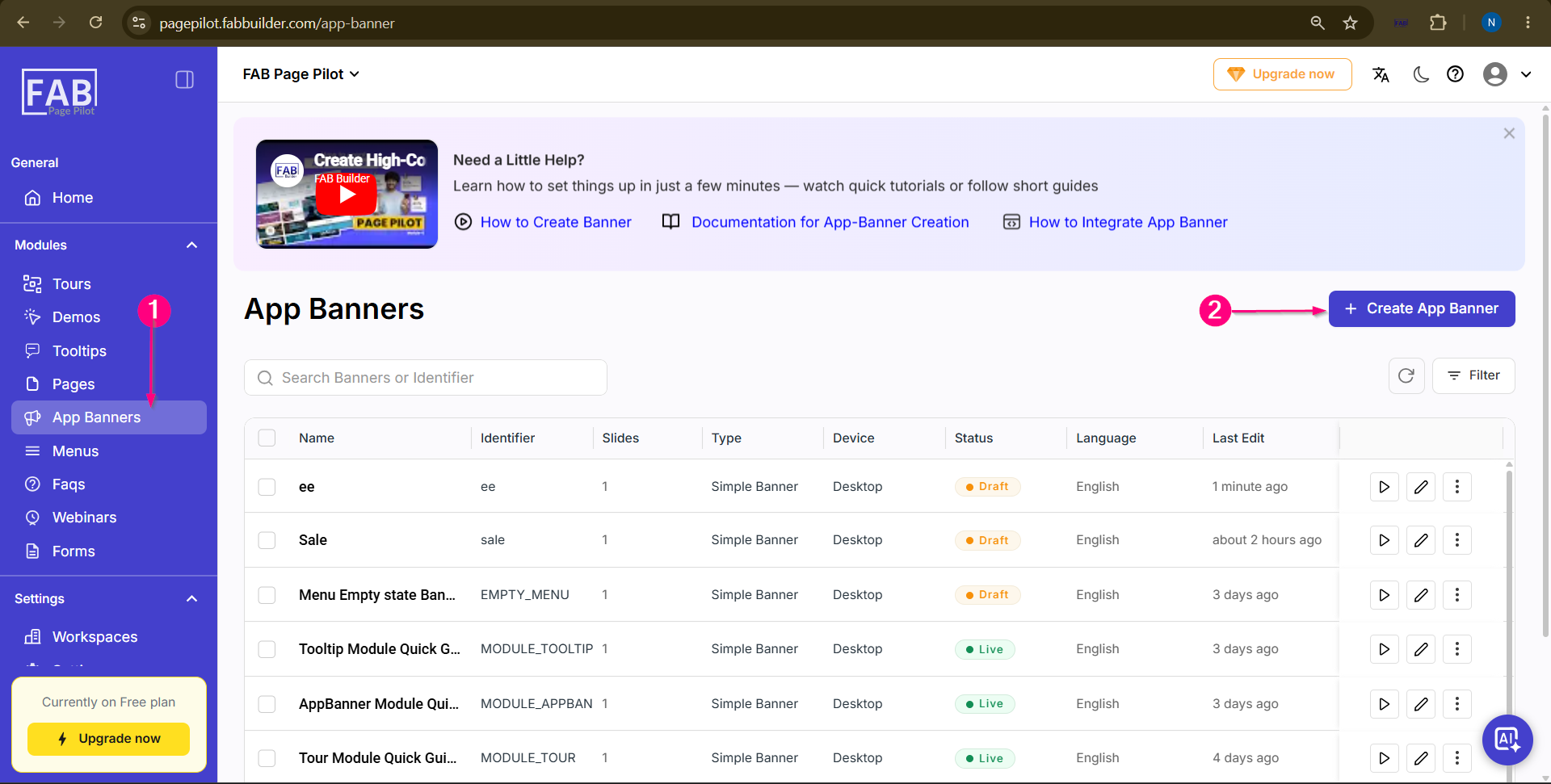 Step 3: Select Carousel Enter the required app banner details, select Carousel, and click the Next button to continue.
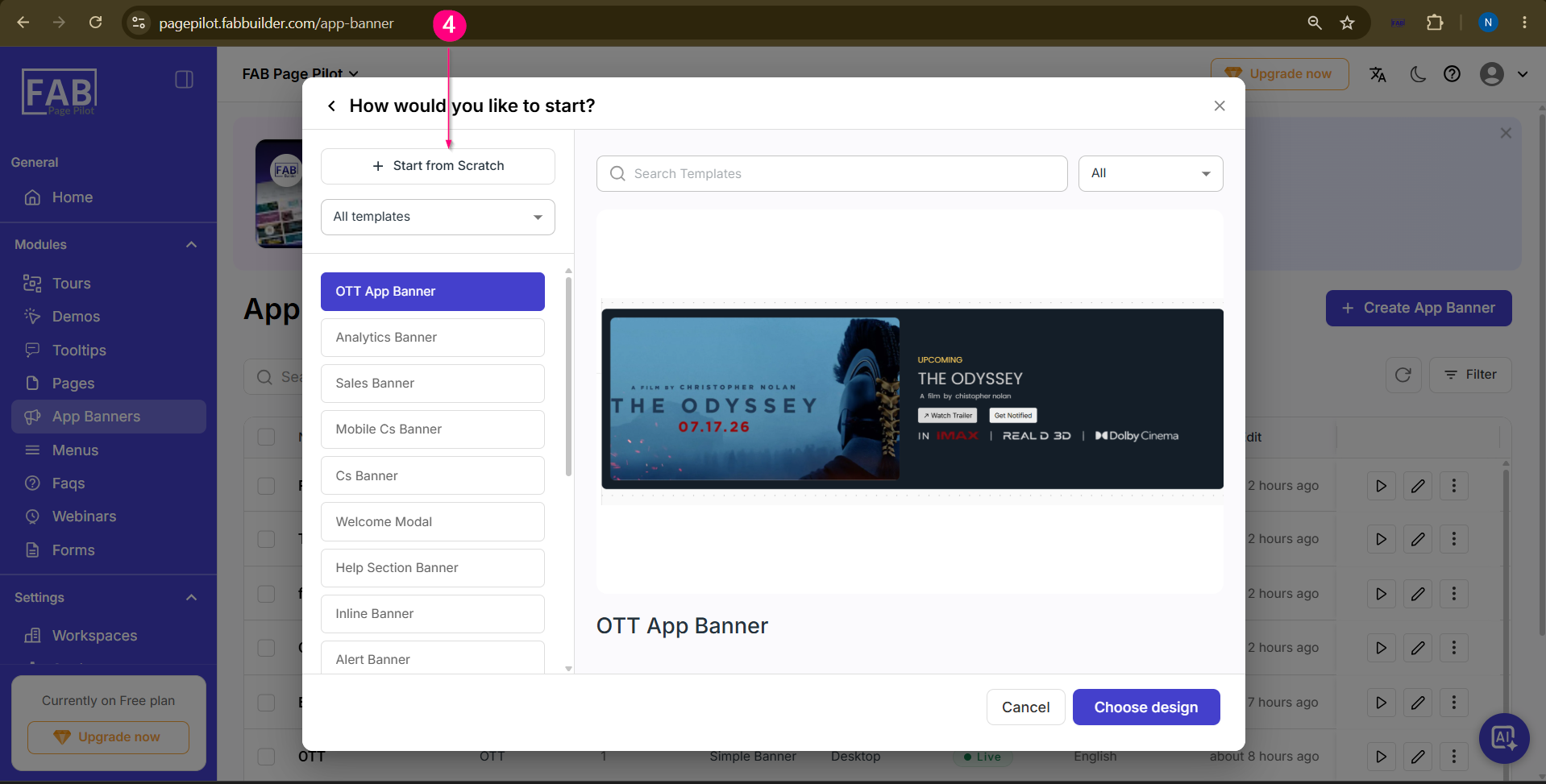
Step 4: Select Method to create Carousel A popup screen will display the available methods for creating Carousel. Select the desired creation method. Here, the scratch method is selected.
 Step 5: Add Design Blocks and Create Carousel To add new blocks, click the Plus (+) icon on the canvas or select the required block from the Layout tab on the left-side panel of the Visual Editor. 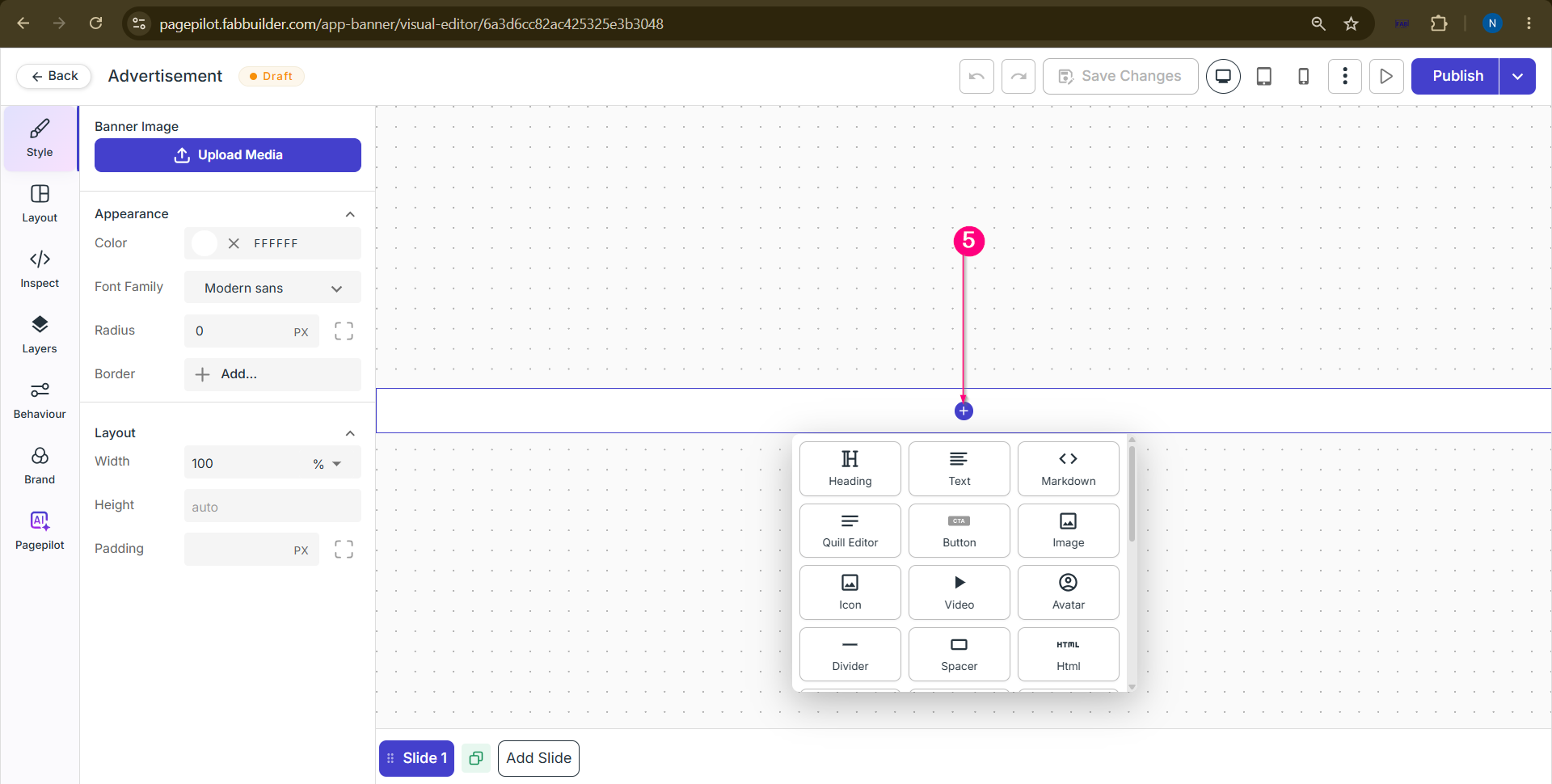 Step 6: Save Changes
Click Save Changes to apply and save the updates made to the Carousel Step 7: Add More Slide by Adding more step Add more slide by clicking on add steps and repeat the same process 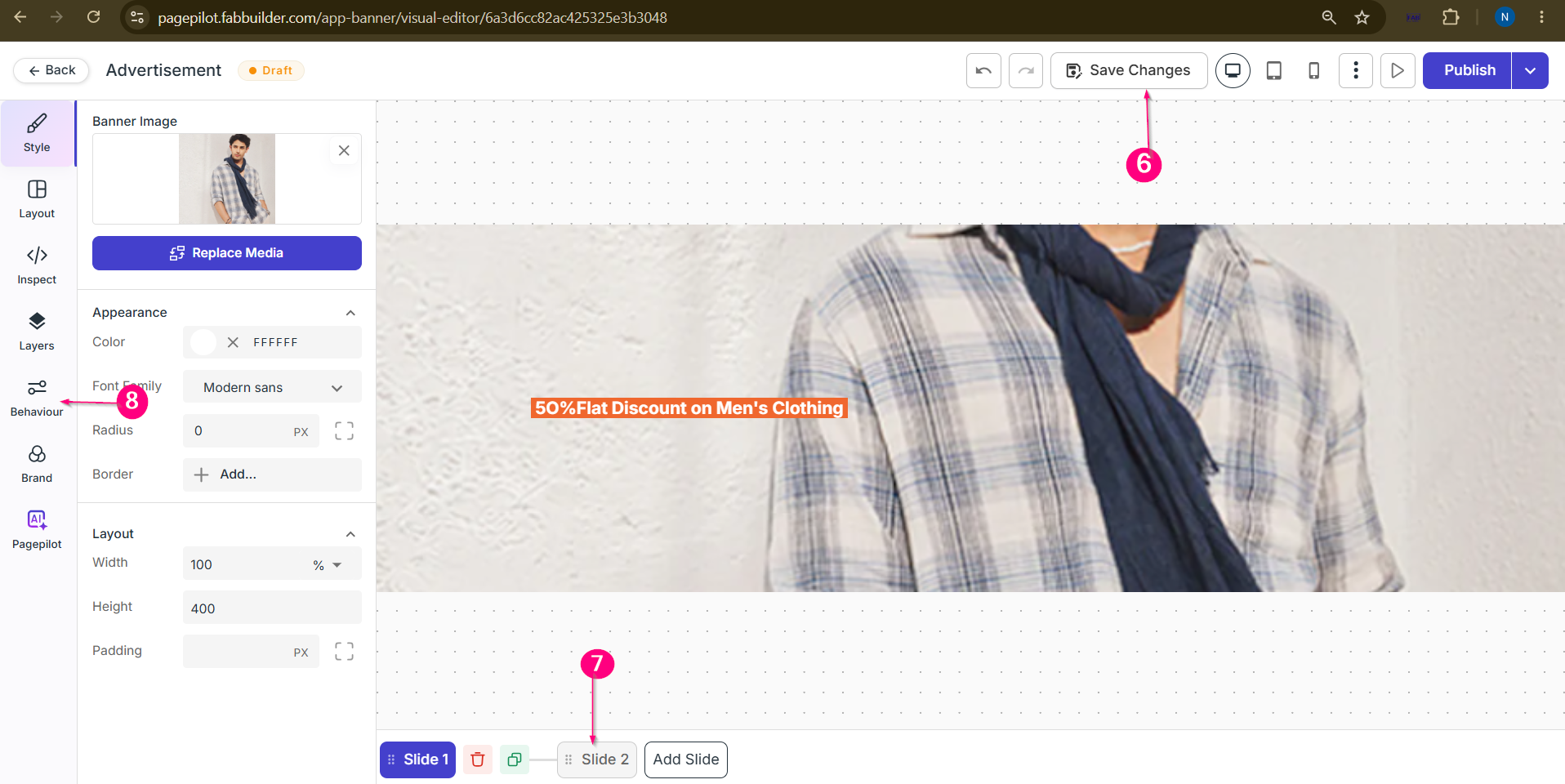 Step 8: Configure Carousel Display Settings Configure the carousel display settings such as Navigation Mode, Auto Rotation, and Transition Time to control how the slides are displayed to end users 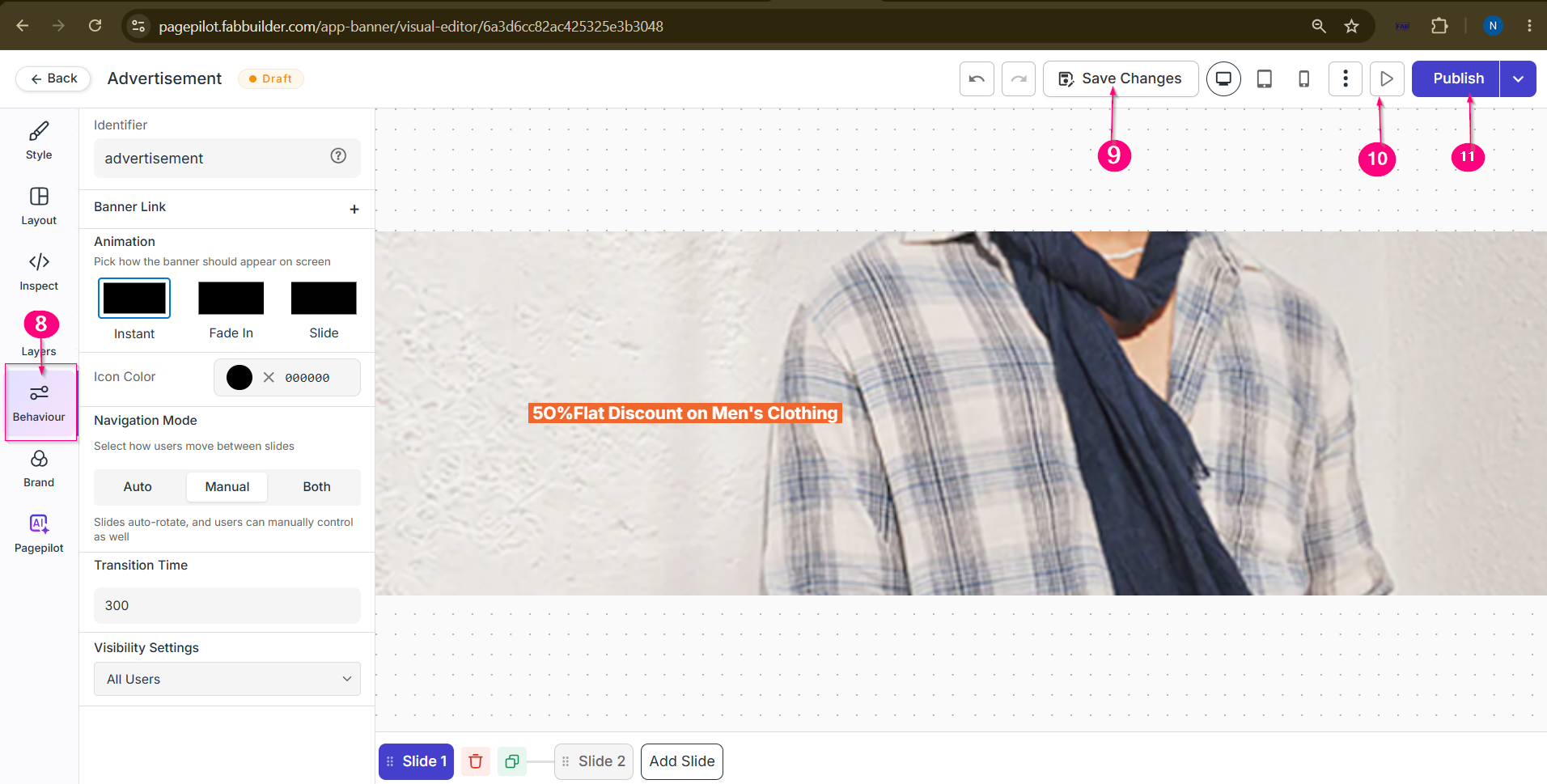 Screen- Configure Carousel Step 9: Save Changes
Click Save Changes to Carousel Configuration Step 10: Preview Carousel
Click Preview to view how the App Banner will appear before publishing. Screen- Carousel Preview Step 11: Publish Carousel
Click Publish. A popup window will appear allowing you to enable or disable the App Banner. Step 12: Review Before Going Live
Before making the Carousel live, review and configure the publishing settings:
Step 13: Publish the Carousel
After verifying all settings, click the Publish button to make the Carousel live. 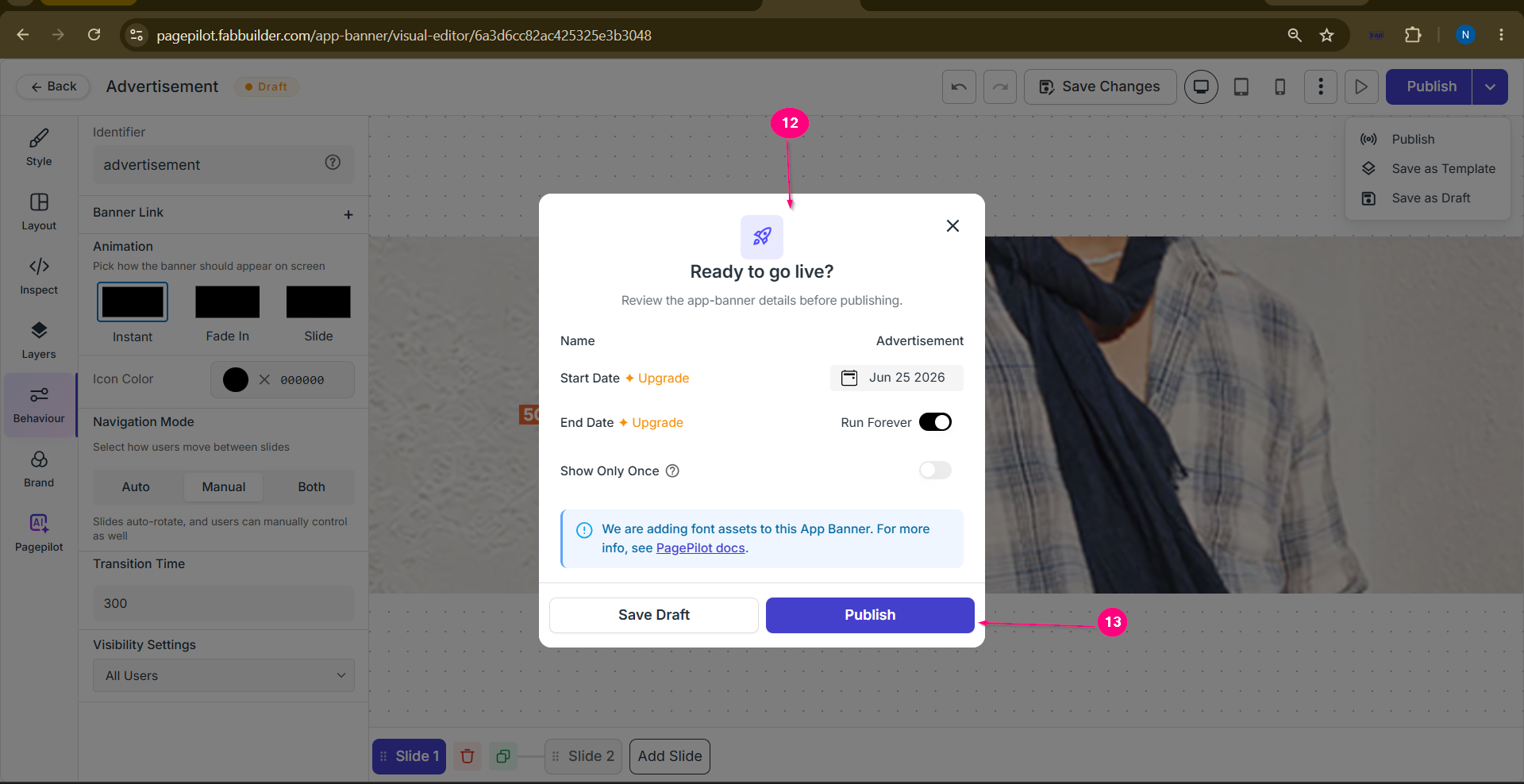
After saving or publishing, the created Carousel will be available in the App Banner Dashboard, where users can view and manage it. |