How to Add a New Site in Page Pilot | Step-by-Step Guide
User must follow the steps to add new site before using the Page Pilot. Here are the steps mentioned below.
1.User can add a new site by clicking on New Site Button on account and site module. on clicking user will be redirected to setup screen of new site.
This screen contains four steps to add new site on left panel of the screen.
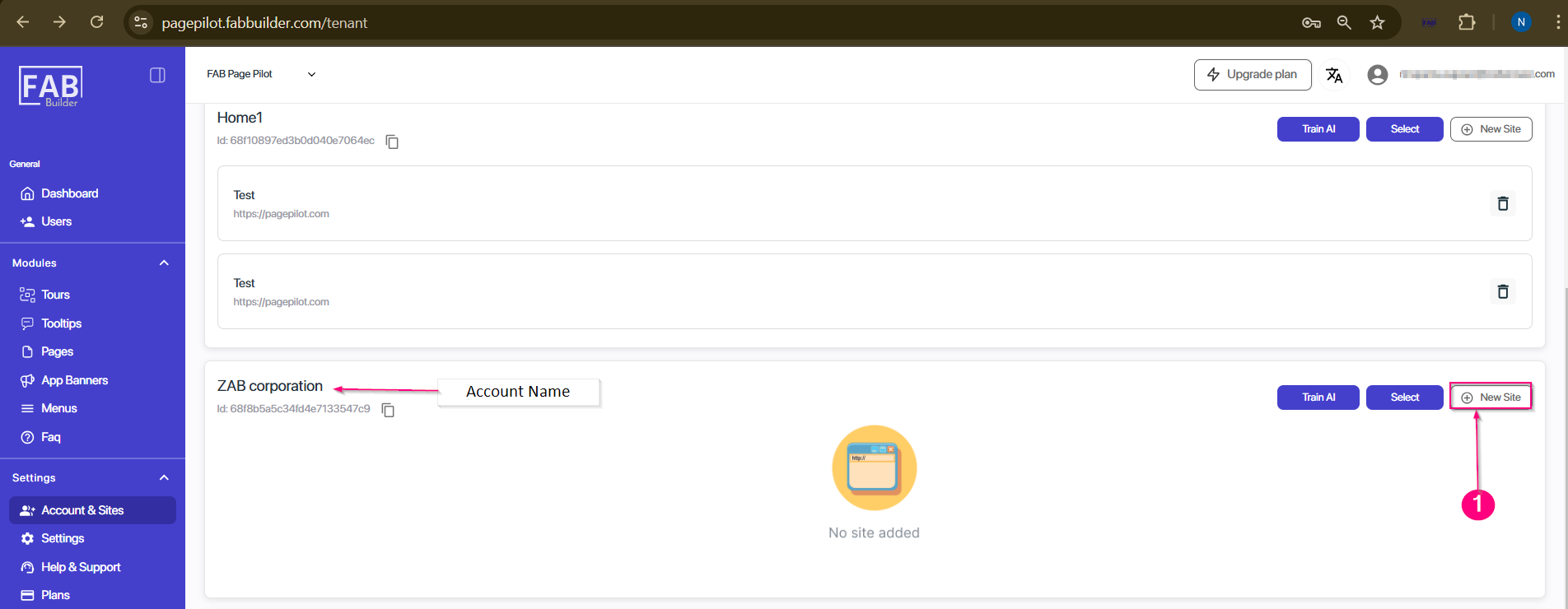
Screen- New Site step 1
2. Overview
This is the first step of setup & install a new site. Overview tab is an active by default setting which provides access to click on the Start Set button to proceed for next step. Users can also watch a setup and configuration video that explains the various sections of the Page Pilot tool before using it for the first time available on main screen area.
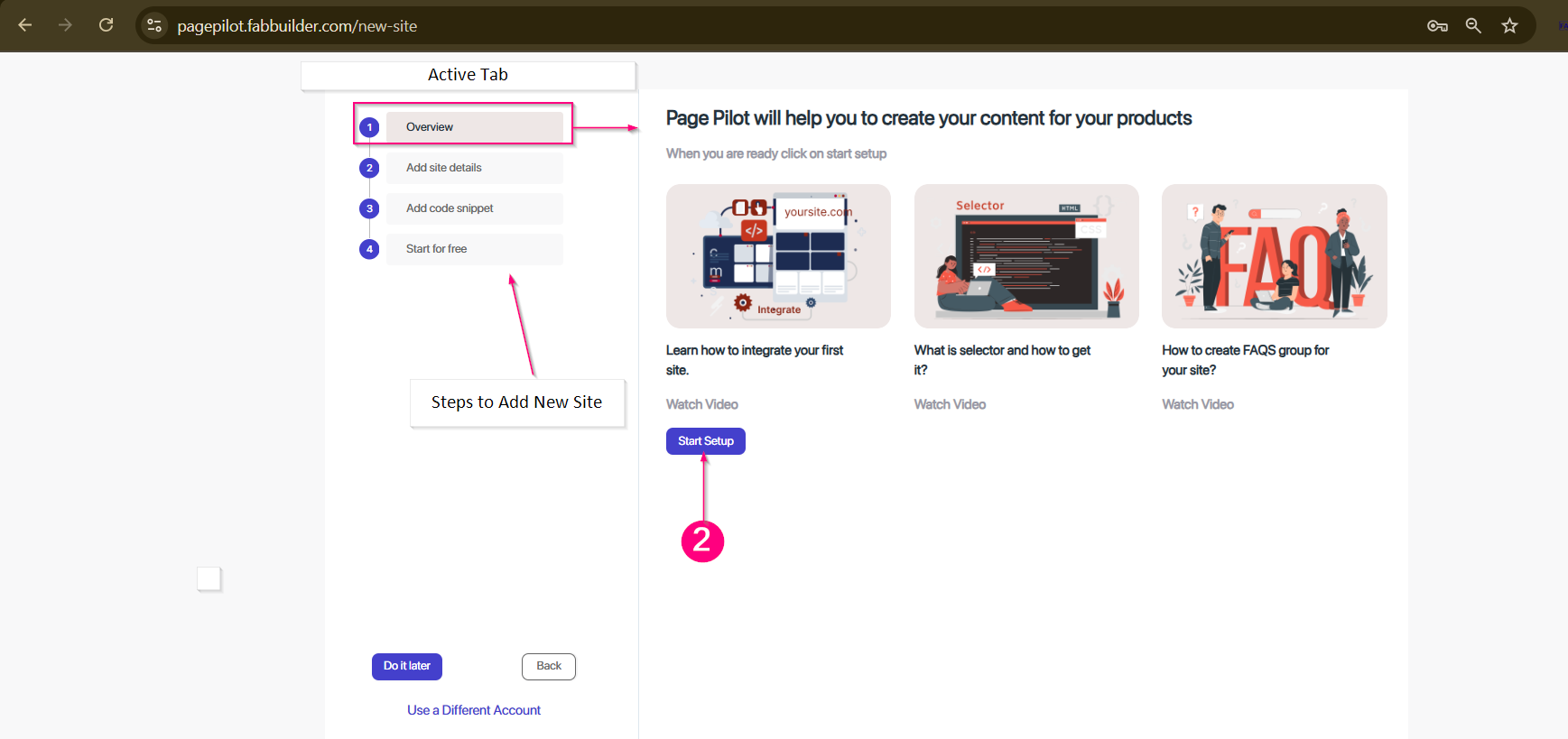
Screen- Overview
3.Add Site Details
Previous Step will redirect to second step to add site details. Users need to register any website (domain) where Page Pilot will be installed and activated. This step allows the user to integrate sites into Page Pilot tools by adding site names and URL options on main panel area. User must click to next button to proceed for step.
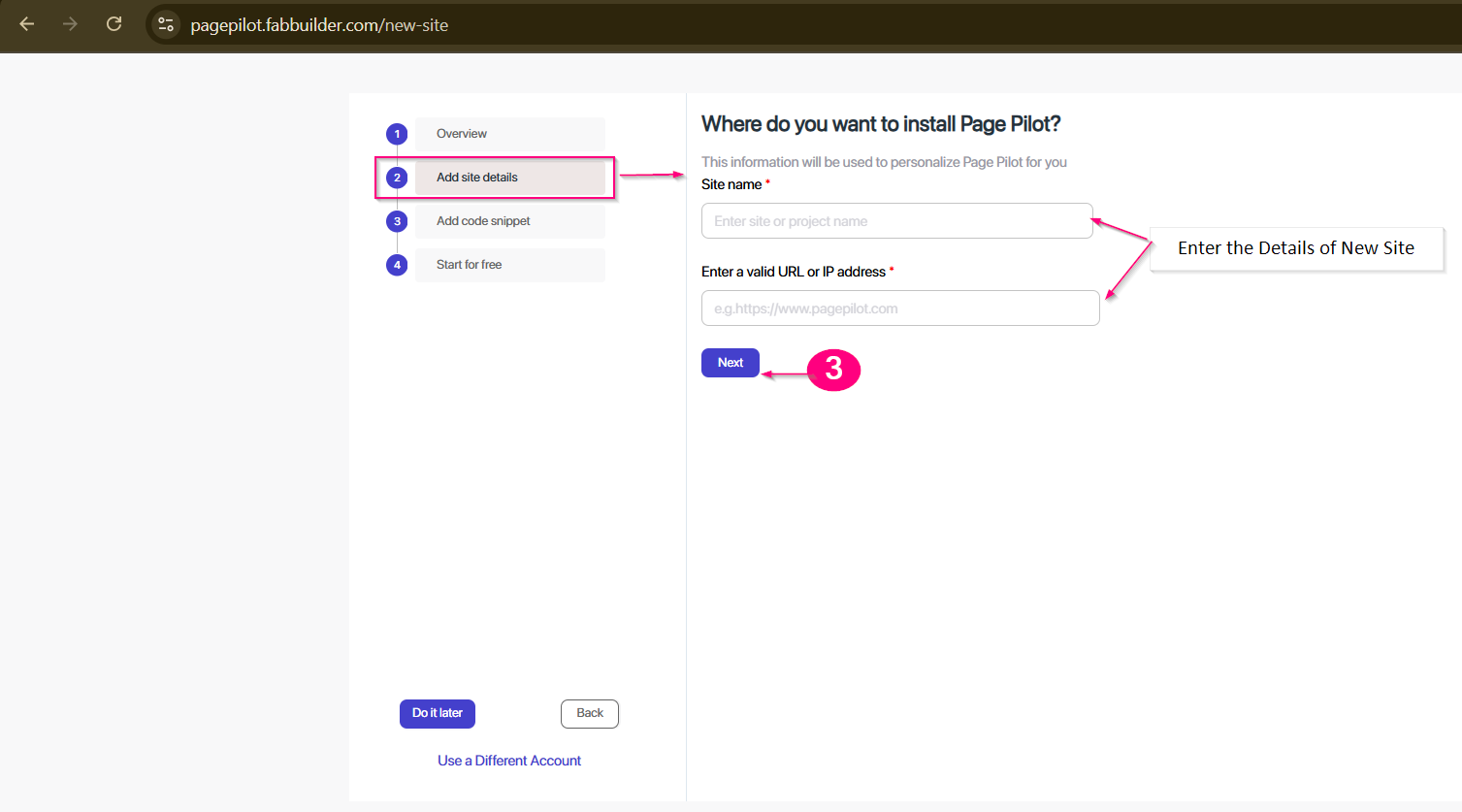
Screen- Add New Site URL
4.Add Code Snippet
In this step, user will be redirec ted to add code snippet screen . Users must click to copy the code and paste it on the page header of the integrated website.
Click on next button to follow the next step.
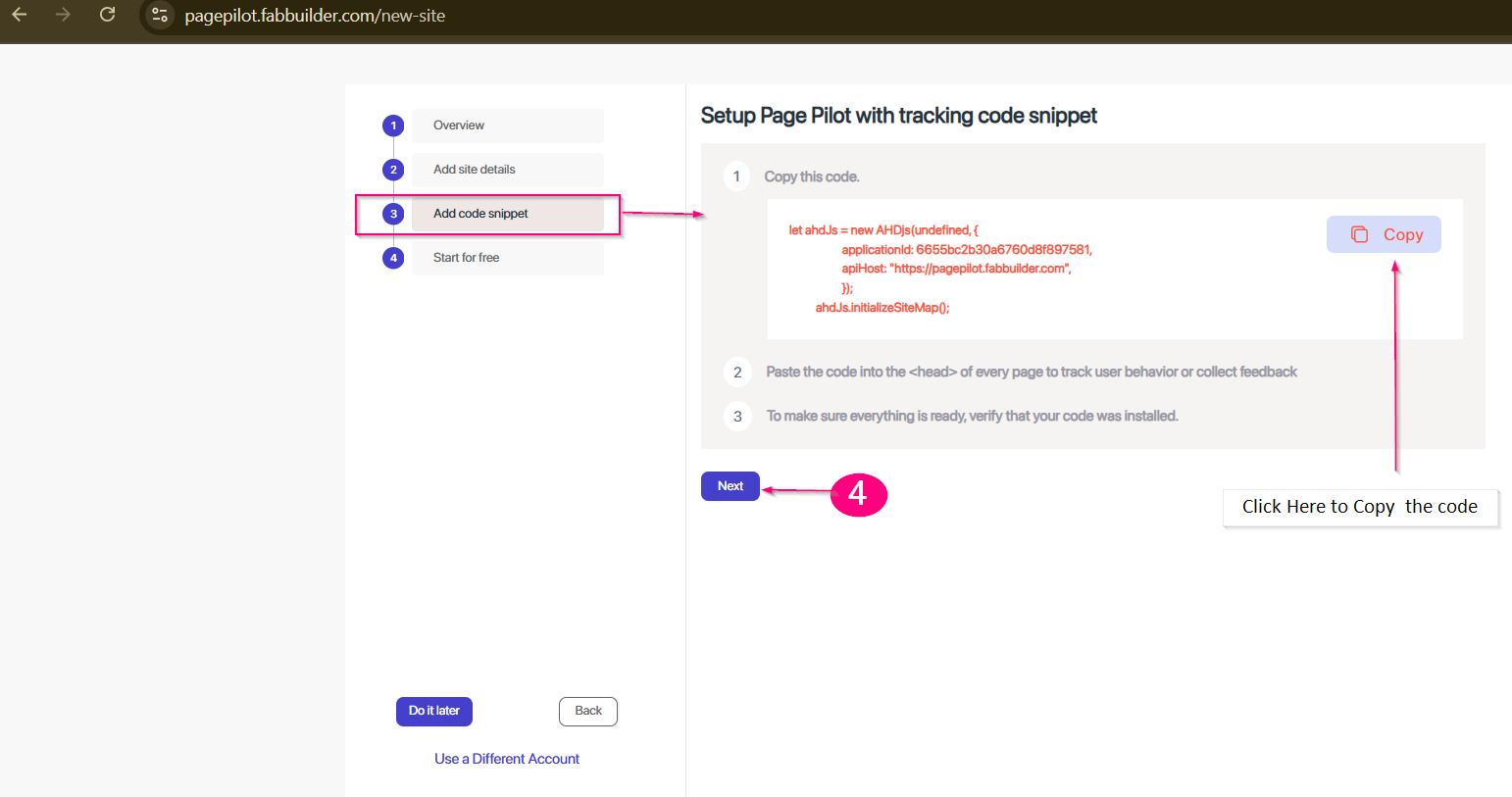
Screen- Copy the code/snippet
5.Start for free
After clicking the Next button in earlier step, the user is directed to Start for Free to a plan. It typically provides access to Page Pilot’s basic features without payment, so users can explore the tool before upgrading to a paid plan.
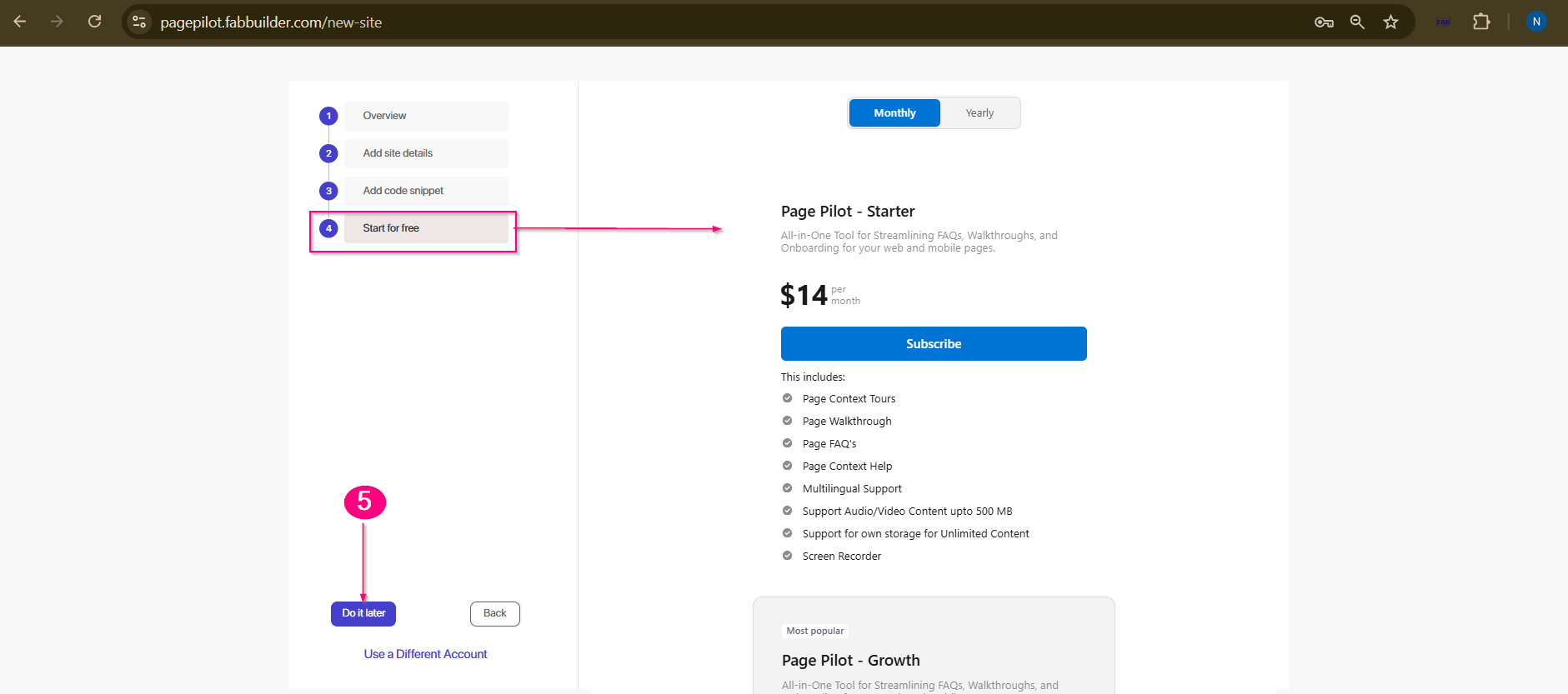
Screen – Start for Free
After successfully subscribing to a plan, the user is redirected to the Dashboard screen to proceed with the next step.user can view the newly added website by navigating account and site section .

Screen- New Added Website in Account