Create, Customize & Publish App Banners Using Page Pilot | Complete Guide
User can create new a banner for the website or campaign.
1. Clicking on + New App Banner tab on App Banner Screen.

Screen-New App Banner
After clicking user will be redirected to new app banner screen with its field details form..
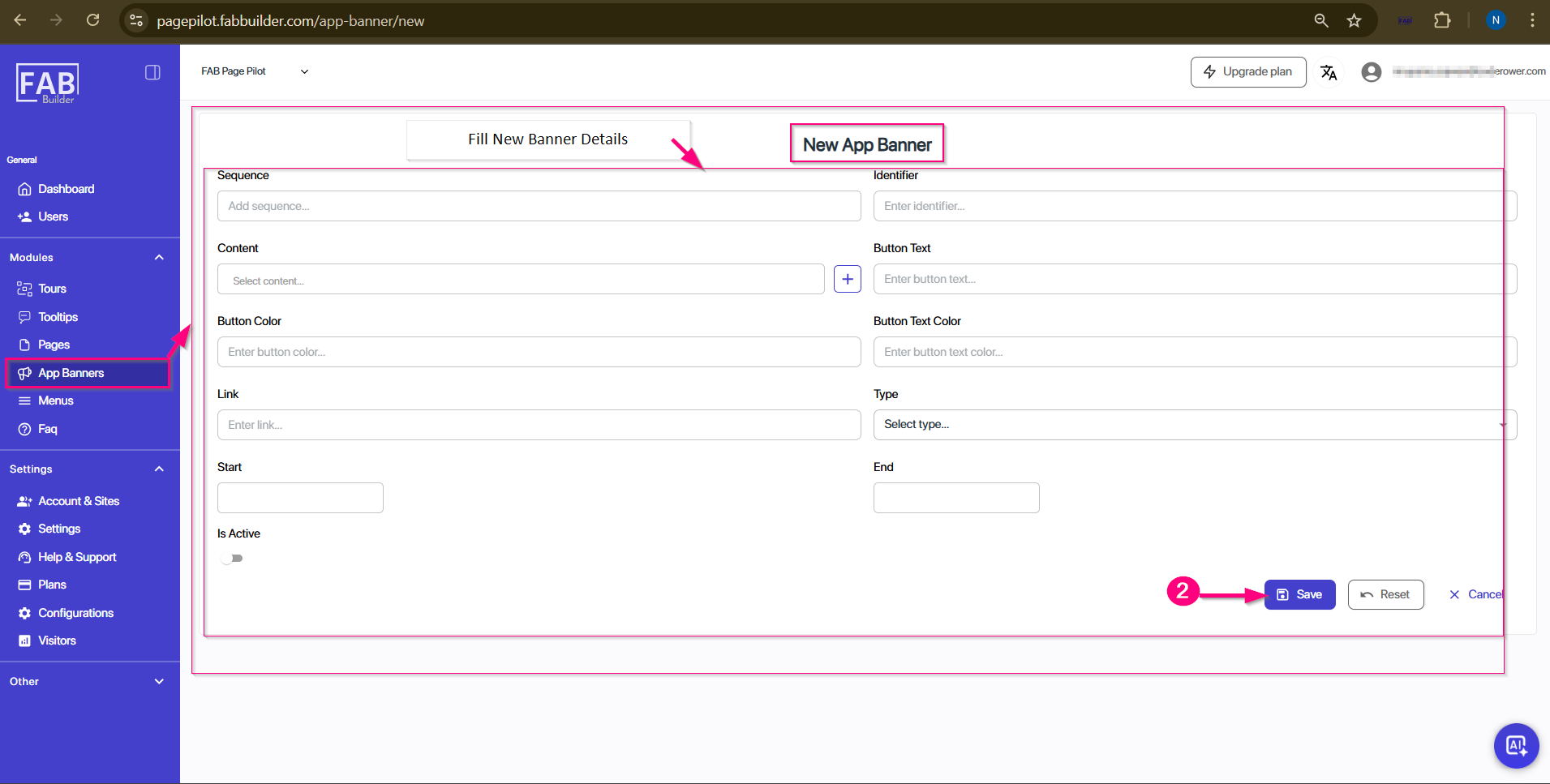
Screen-App Banner
User must to fill all details as mentioned
Sequence >Identifier > content > Button Text > Button Colour> Button Text colour> Link> Type
User must enable Is Active button to publish it on website .
In the New App Banner screen, after adding the content details (title, description, images, or videos), the user needs to scroll down to provide additional details:
- Start Date: Select the date from which the banner should be visible.
- End Date: Select the date until which the banner should remain active.
2. Save Banner: Once all the fields are filled in, click the Save button to successfully add the new banner.
This completes the process of creating and saving a new app banner.