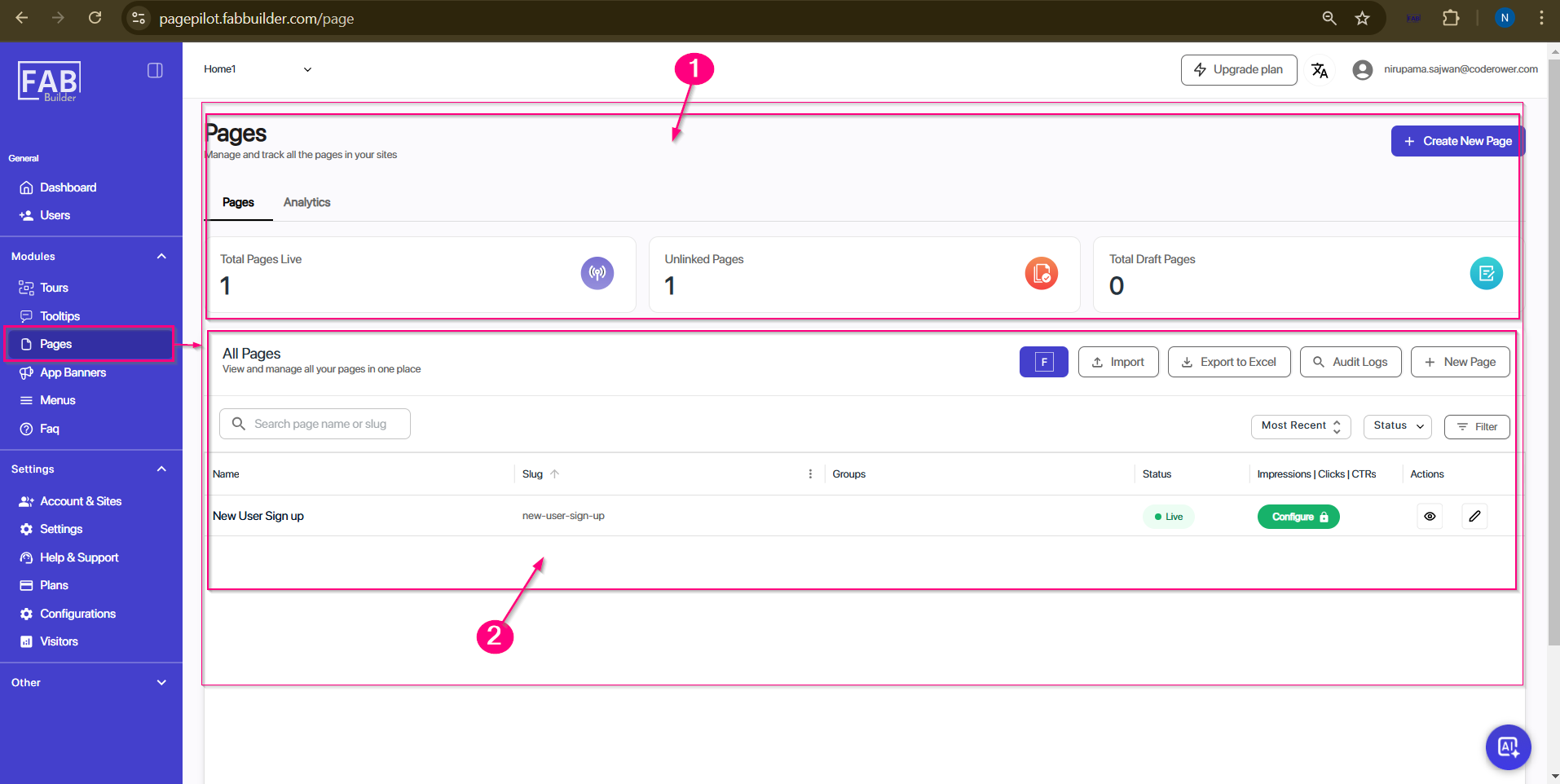
A Page represents a single target page (URL) of a website. Within this Page, users can create and manage multiple tooltips, each linked to a unique element ID on that target page. This ensures that all tooltips associated with the same screen are grouped together. The Pages section of Page Pilot allows users to create a page with the same URL that was added while creating a tooltip. This ensures that the tooltip details are properly connected to the corresponding website page. Before creating a page, the user must verify that the website URL matches the page URL to maintain the connection between tooltips and the website. When users navigate to Pages section from the left navigation panel, they land on the Page screen, which can be divided into the following areas:
Screen-Pages 1. Header and Tabs Area:
a. Pages Tab: Active by default, displaying all details related to the page. b. Analytics Tab: Displays page performance metrics once data is available. Summary Section: This section provides an overview of the pages in the system using the summary card a. Total Pages Live – The first card displays the total pages live, indicating the number of pages published/active. b. Unlinked Pages – Second card shows which pages have been created but not linked any website snippet, tooltips, or product tours yet. c.Total Draft Pages – User can view the count of saved draft pages and yet not published to any website.
2. All Pages Section This section provides access to various action tabs, filtering options and allows users to view detailed information about all the created pages. These tabs are arranged from left to right as below
Just below this action tabs there is horizontal bar which contains the following tabs Search bar which helps user to find pages by name or slug. Most recent menu tab- allows user to view recently created pages details. Status-user can verify page status. Filter options- Filter the pages. Columns include a. Name: Shows the title of the page for easy identification b. Slug: Displays the URL-friendly version of the page name, which is used on the website c. Groups: Indicates the category or collection the page belongs to. d. Status: Shows whether the page is published, draft, or inactive e. Impressions: Tracks the number of times the page has been viewed. f. Actions: Provides quick access to operations such as editing, deleting, or linking the page. |