Save Tooltip as TemplateFollow the below steps to save a created tooltip or tool as a template.
Step 1: Select the ModuleOpen any module that contains the created tool or tooltip.
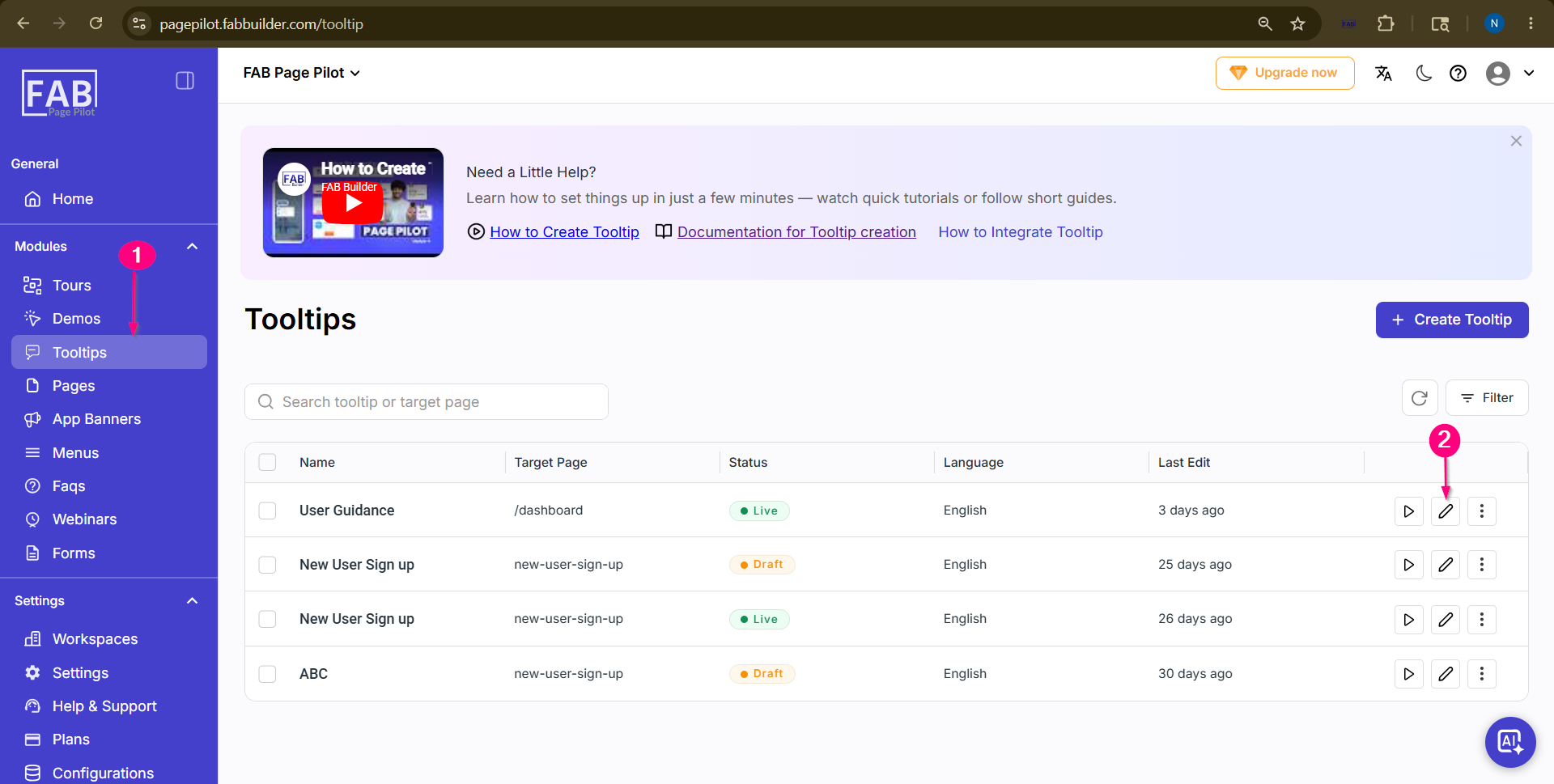 Screen- Select the created Tooltip
Step 2: Open the Visual EditorClick on the Edit button.
Step 3: Access the Save as Template Menu From the top-right corner of the Visual Editor screen, click on the drop-down menu
Step 4: Select “Save as Template”From the top-right corner of the Visual Editor screen, click on the drop-down menu and selectSave as Template.
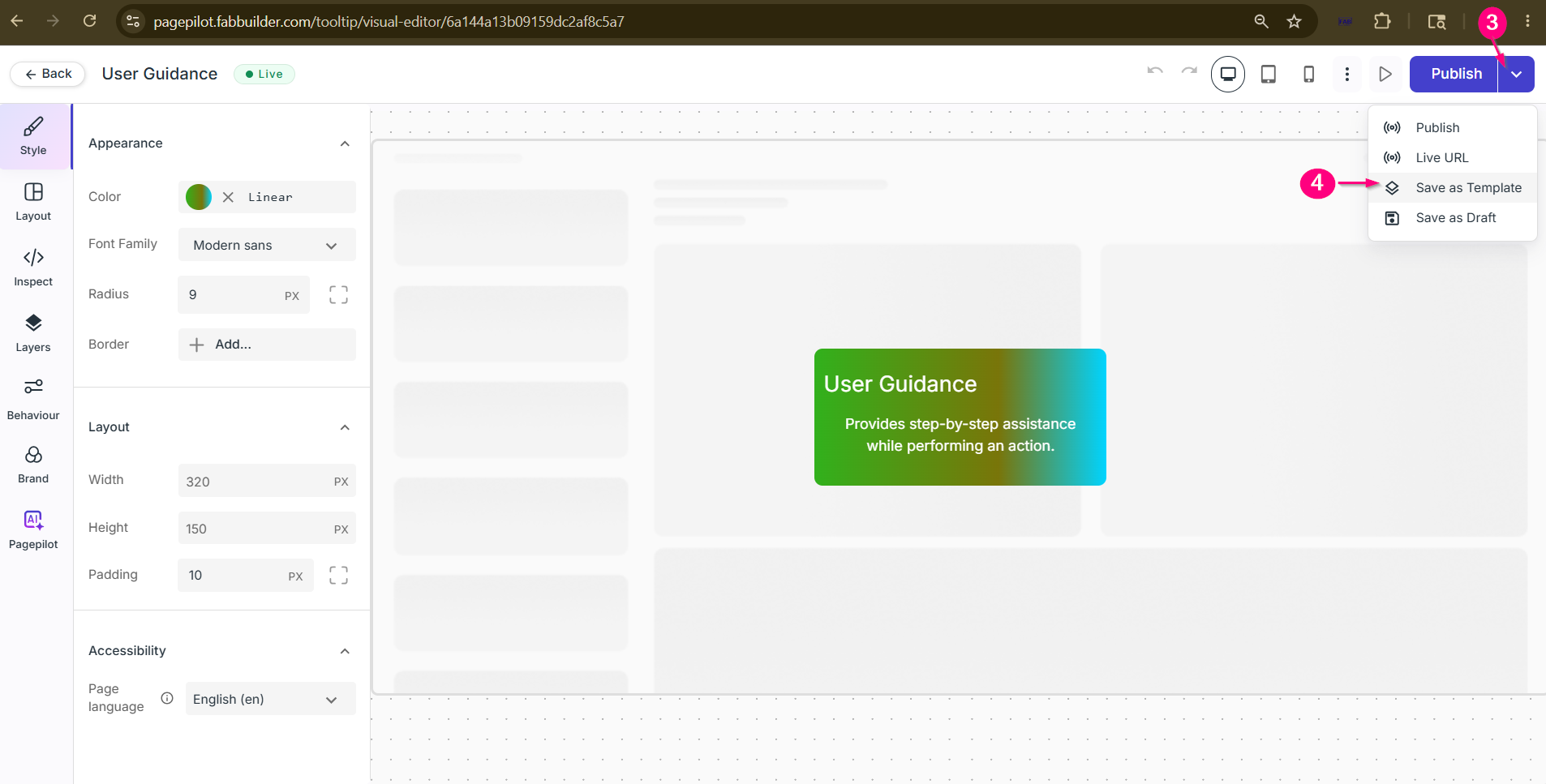 Screen- Navigate and select Save as Template Tab
Step 5: Enter Template DetailsA pop-up window will appear where the user must provide the required details such as:
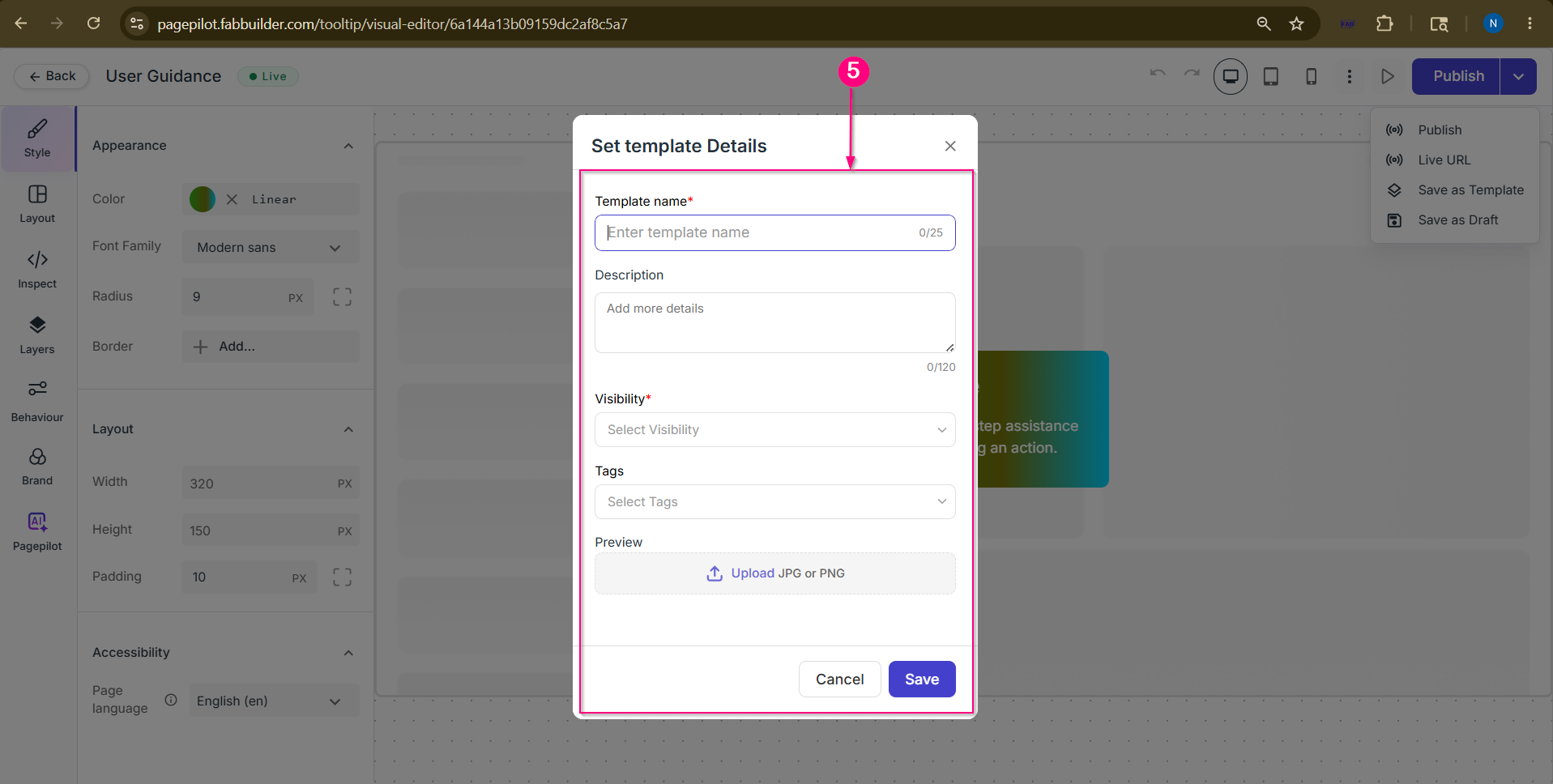 Screen- Add TemplateDetails
Step 6: Access Saved TemplateClick on the layout tab on left side panel.
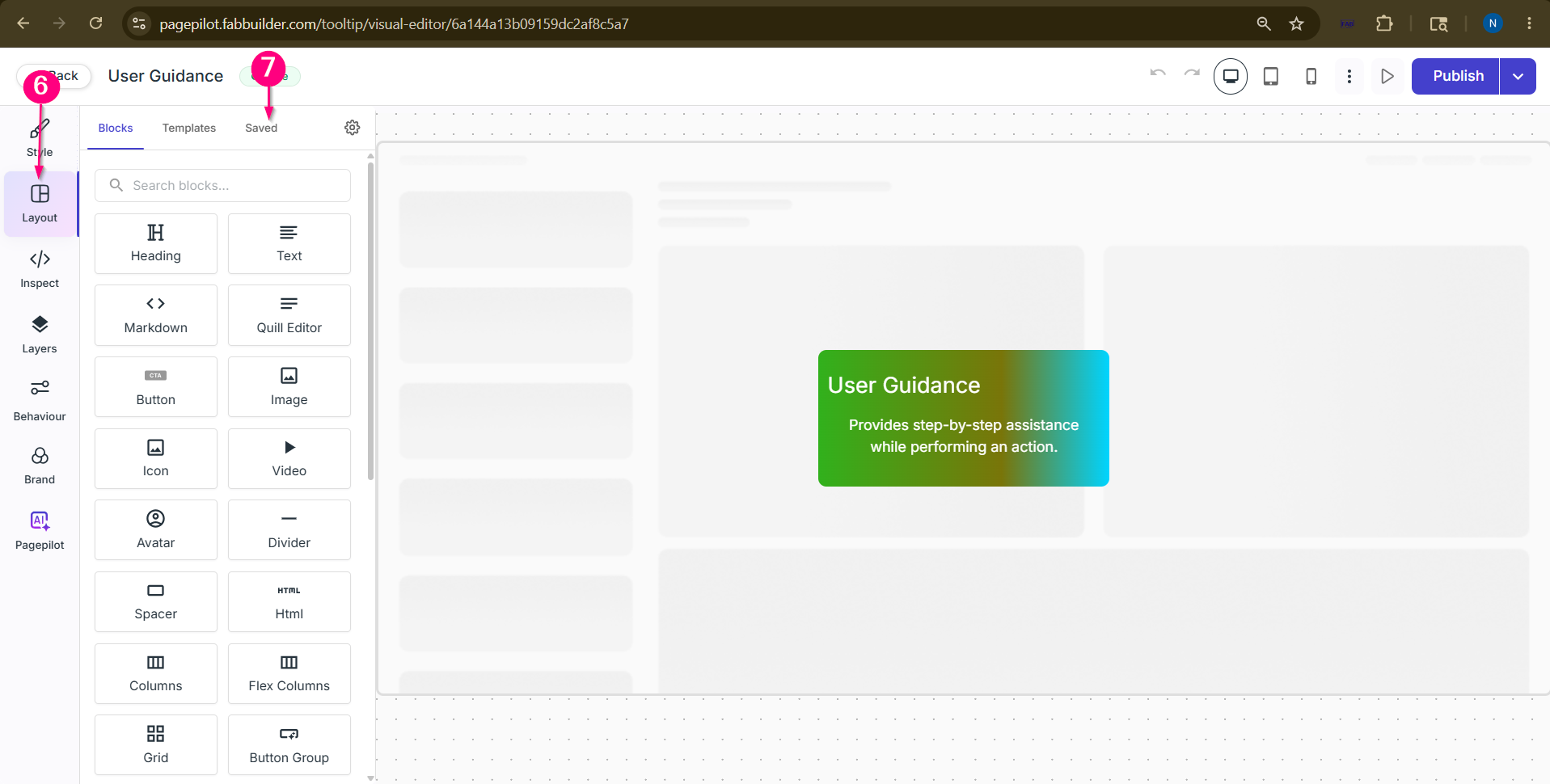
Step 7: Open the Saved templateClick on the Save button ubder layout tab
Now user can view the saved tootltip as template. 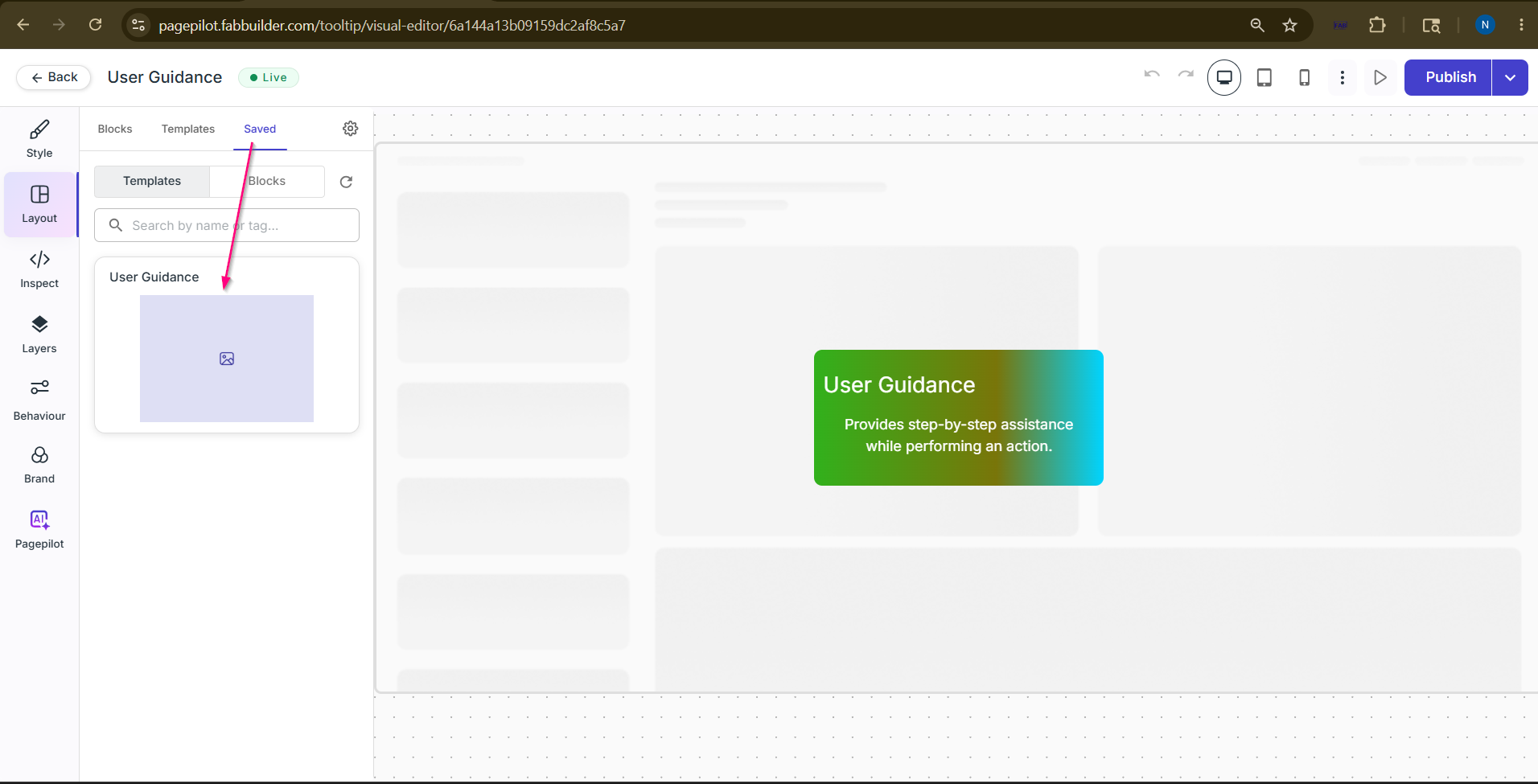 Screen- Access Save Template |