Tours Toggle
d. Summary Cards
- Total Tours Live – Shows the number of tours that are currently active and live on the website/app.
- Pages with Live Tours – Displays the number of web pages that contain active tours.
- Total Tours Draft – Indicates the number of tours that are saved as drafts but not yet published.
e. Tabs
- Import – Upload pages from another source.
- Export to Excel – Export list of all pages for record/reporting.
- Audit Logs – Track history of changes.
- New Tour- To create new tour.
f. Just below tabs there is horizontal bar which contains the following tabs
- Search bar -This bar helps user to find pages by name or slug.
- Most recent menu tab- allows user to view recently created pages details.
- Status-user can verify page status.
- Filter options- Filter the pages.
g. List Area
This area lists all tooltips, tours created by the user in a structured table format.
Table Columns- This Area Contains the Following details as listed below
- Name – The title given to the tour created.
- Page Source – The web page/screen where the tour is applied.
- Type – Indicates whether the tooltip belongs to a tour or is standalone.
- Status – Current state of the tour (Draft, Live, Inactive).
- Language – The language in which the tooltip content is created.
- Device – The platform (Desktop, Mobile, Tablet) where the tooltip will be shown.
Action Tab- There are four action tabs to delete ,copy,view and edit the tour details.
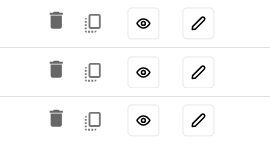
Screen-Action tabs of Tours
Delete tab-This tab allows the user to permanently remove a selected tour from the system.
Copy tab-user can copy the specific tour detail listed on table.
View Tab-The View tab allows the user to access options such as Edit, Preview, and Delete, along with other detailed information as mentioned below:
- Users can select or save the status of the tour (e.g., Draft, Live, Unpublished) from the header section.
- The Details area displays read-only information such as Tooltip Name, Page Source, Element ID, and other related data.
- The Tour screen area under the View tab also provides insights and analytics to track visitor activity and analyze the performance of published tours.
Edit Tab- User can edit the tour content by clicking on it.
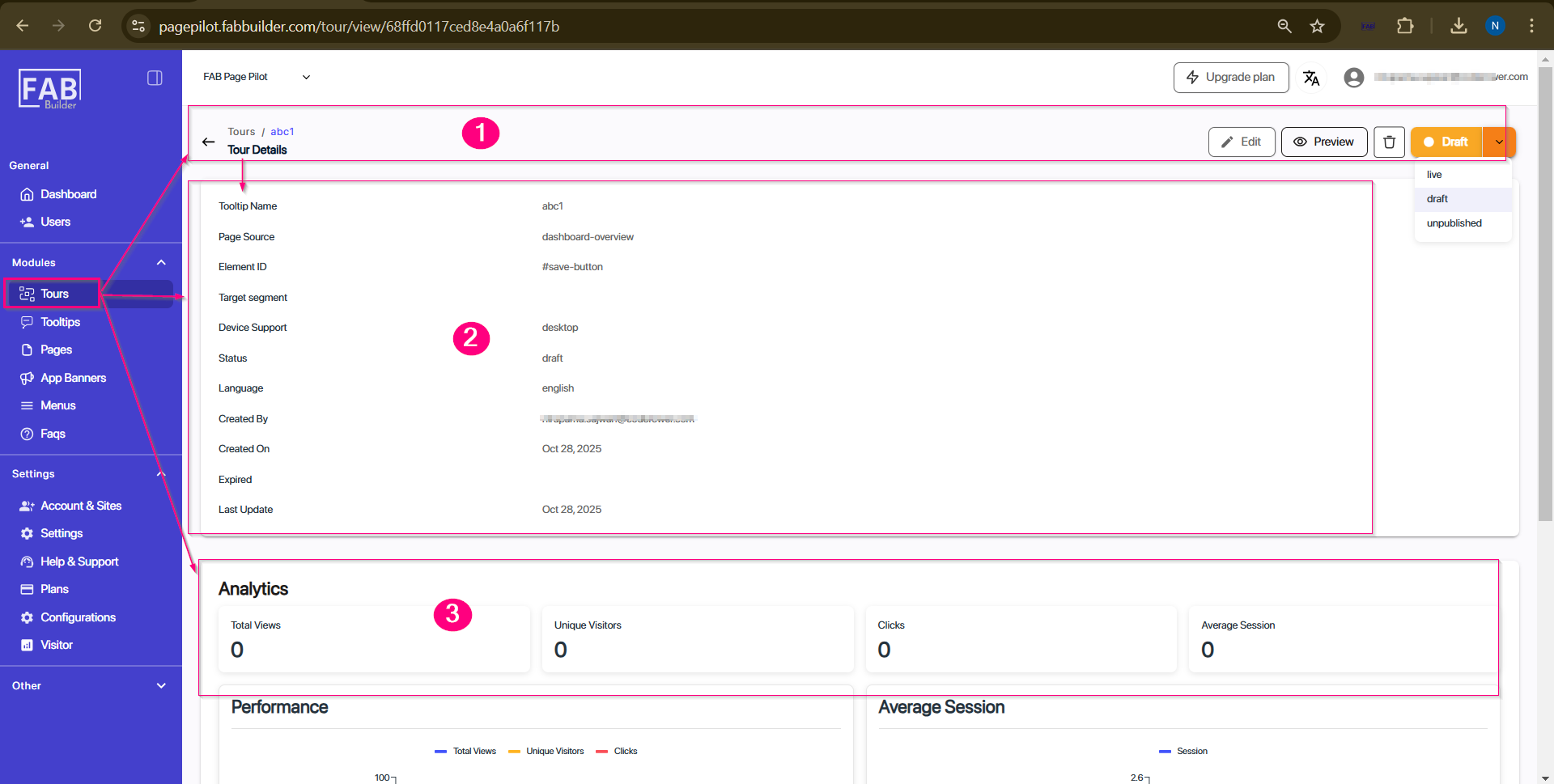
Screen-View/Tours
- Pagination Controls (bottom-right)-Rows per page defines how many tour entries displayed on the table at once.Navigation arrows moves the pages of
the tooltip on list when entries exceed the selected row limit.