How to Edit a Team Member’s Access and Details
The Edit Team Member popup allows administrators to update an existing team member’s details and access level. From the Teams screen, the admin can open this popup using the action menu for a specific user, review or modify the member’s name, email address, and assigned access role, and then save the changes.
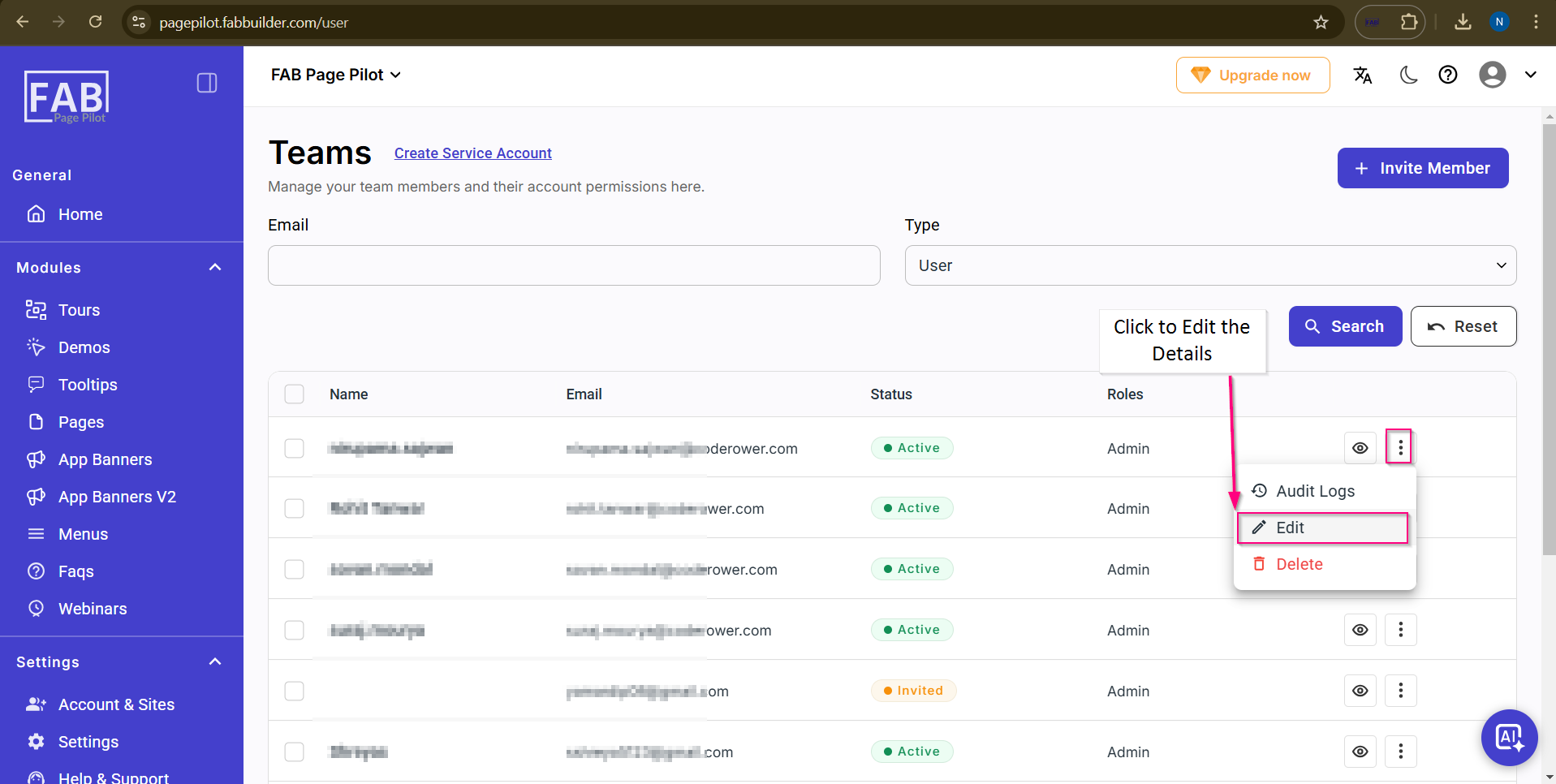
Screen- Edit User Access
Steps to Edit a Team Member:
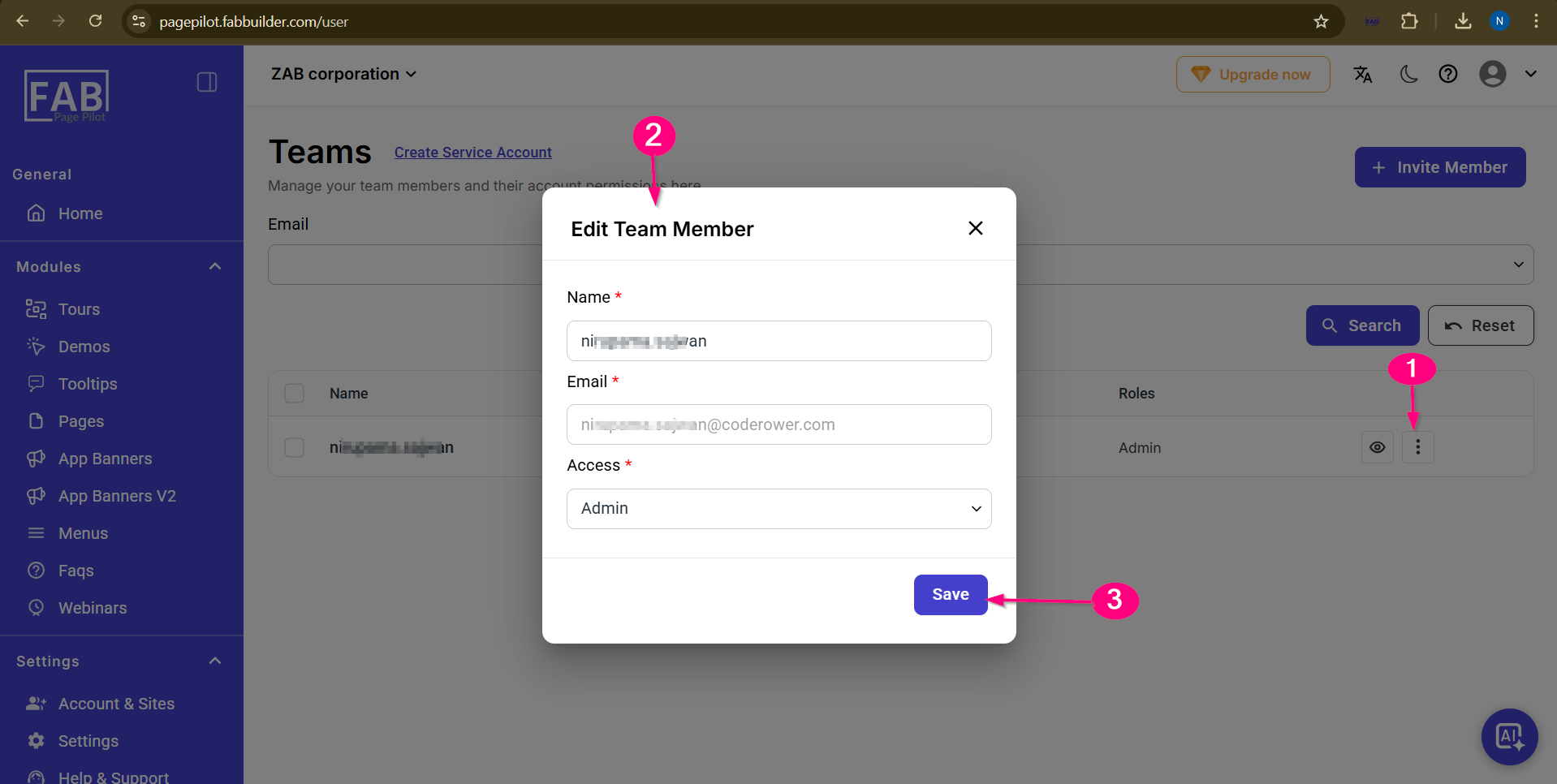
Screen-Edit Team Member
- Go to the Teams screen.
- Click the three-dot (more actions) icon next to the team member.
- Select Edit to open the Edit Team Member popup.
- Update the Name, Email, or Access role as required.
- Click Save to apply the changes.